


Step-by-Step Xtreme HD IPTV Installation for Amazon Fire TV
Quick Answer
To install Xtreme HD IPTV on an Amazon Fire Stick, unlock Developer Options in your device settings, install the Downloader app from the official Amazon Appstore, and enable app sideloading. Enter your active Xtream Codes API URL, username, and password into a compatible media player like TiviMate or IPTV Smarters Pro to begin streaming.
Table of Contents
Prerequisites and Preparation Checklist
Setting up your streaming environment correctly avoids common connection errors and stream stuttering. Before touching your remote control, gather your account details and verify your hardware readiness. According to broadband streaming benchmarks published by the Federal Communications Commission (FCC), live HD and 4K video feeds require stable downstream bandwidth to prevent constant rebuffering during peak hours.
To ensure a smooth deployment, check off the following requirements:
- An active service account with valid server credentials, including your Xtream Codes API base URL, username, and password.
- An Amazon Fire TV Stick (2nd Gen or newer, Fire TV Cube, or FireStick 4K Max) running a recent Fire OS build with at least 500MB of free internal storage.
- A stable home internet connection delivering a minimum of 25 Mbps download speeds for high-definition channels.
- A registered Amazon account signed into the Firestick to access the official app store.
Key Takeaway: Verify your network speed and have your portal credentials ready before starting the installation to prevent interruptions.
Unlocking Developer Options on Current Fire OS Builds
Amazon periodically updates Fire OS interfaces, which often hides the developer tools menu by default. If you are using a newer Fire TV device, you will not see the necessary sideloading switches until you manually unhide them.
Navigate to your Firestick home screen, click the Settings gear icon, and select My Fire TV (or Device & Software on newer software versions). Click on About, locate the exact name of your Fire TV model, and press the Select button on your remote control seven times consecutively. A small notification pop-up at the bottom of your display will confirm that you are now a developer. Press the back button once, and you will see Developer Options newly available directly beneath the About menu.
Key Takeaway: Tapping the device model name seven times in the About menu unlocks the hidden developer controls required for third-party software installation.
Installing the Downloader App and Enabling Sideloading
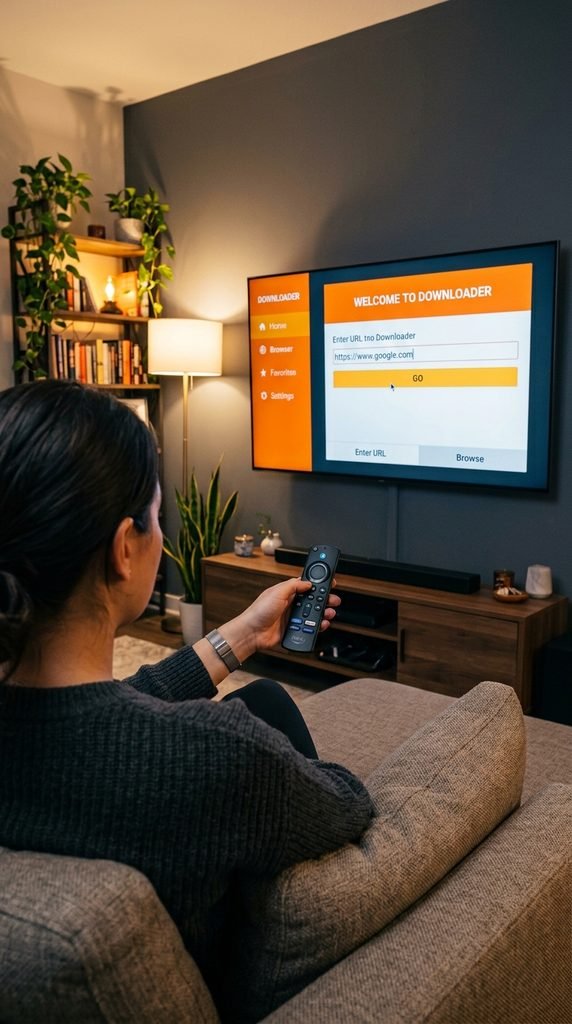
With developer options unlocked, you need a secure utility to download external application packages (APKs) directly to your hardware. The official Downloader app by AFTVnews is the industry standard for this task because it includes a built-in web browser and file manager.
Return to the Firestick home screen and select the Find search tile. Type “Downloader” using the virtual keyboard, select the orange Downloader icon from the search results, and click Get or Download to install it.
Before opening Downloader, go back into your Settings > My Fire TV > Developer Options. Select Install Unknown Apps, locate the Downloader app in the list, and click it once to switch the status from OFF to ON. This grants the utility permission to execute third-party APK installations.
Key Takeaway: You must manually grant permission to the Downloader app within Developer Options to allow external package execution.
Step-by-Step Installation and URL Configuration
Now that your device environment is fully configured, you can pull the application installation package using Downloader.
Open the Downloader app from your application tray. In the primary URL entry field on the Home tab, enter the direct download link or shortcut code provided in your official portal welcome email. Click Go, and allow the browser to connect to the server and download the APK file.
Once the download finishes, a system installation prompt will automatically appear on your screen. Review the application permissions and click Install in the bottom right corner. When installation completes, click Done rather than Open, then select Delete to remove the temporary installation file and reclaim valuable internal device storage.
Step-by-Step Execution State Table:
| Step Number | Action Performed | Expected Screen State |
| 1 | Open Downloader app and input URL | Active text cursor in target address field |
| 2 | Initiate file download | Progress bar tracking percentage downloaded |
| 3 | Execute application installation prompt | System dialog showing app permissions and Install button |
| 4 | Delete installation package file | Storage confirmation dialog showing freed disk space |
Key Takeaway: Always delete the downloaded APK file after installation to preserve device storage memory.
First Login: M3U Playlists vs. Xtream Codes API
When you first open your newly installed streaming application, you will be prompted to select an authentication method. Choosing the correct protocol ensures your Electronic Program Guide (EPG) syncs reliably.
The two primary connection types are standard M3U Playlist URLs and Xtream Codes API login credentials. M3U links require pasting long, complex web strings that can easily result in typing errors on a remote control. Conversely, the Xtream Codes API method divides your login into three clean, manageable fields: the server URL, your username, and your password. Entering these individual parameters reduces authentication errors and allows the player to fetch live channel categories and catch-up TV metadata much faster.
Key Takeaway: Use the Xtream Codes API login method instead of long M3U strings to avoid remote-control typing errors.
Selecting Your Player: TiviMate vs. IPTV Smarters Pro
Choosing the right media player application determines your day-to-day user experience, channel surfing speed, and interface layout.
TiviMate is widely regarded as the premier player for Firestick users. It offers a modern, television-optimized electronic program guide, multi-screen viewing, customizable remote keybindings, and rapid channel switching. IPTV Smarters Pro is another robust alternative featuring a clean dashboard, split-screen support, parental controls, and integrated master search functions. If you want maximum customization and a cable-like guide layout, TiviMate excels; if you prefer an intuitive, user-friendly menu system out of the box, Smarters Pro is an exceptional choice.
Key Takeaway: Match your player choice to your preference for interface complexity—TiviMate for advanced guide features or IPTV Smarters Pro for straightforward navigation.
Troubleshooting Common Firestick Failure Points
Even with careful setup, hardware quirks or network hiccups can occasionally interrupt your streaming session. Real-world troubleshooting requires addressing specific device error states rather than generic resets.
If Downloader throws a parsing error during package installation, the download file is likely corrupted or incomplete; clear the Downloader cache and re-enter the URL. If the installed application fails to appear on your home screen, press and hold the Home button on your remote, select Apps, and scroll to the bottom of the list where newly added software is placed. For persistent buffering during live broadcasts, check your Wi-Fi frequency band; switching your Firestick from a crowded 2.4 GHz network to a clear 5 GHz channel or Ethernet adapter immediately resolves local bandwidth bottlenecks.
Key Takeaway: Targeted troubleshooting—such as switching Wi-Fi bands or checking application tray lists—resolves most common Firestick operational bottlenecks.
Legal, Safety, and Network Considerations
Streaming digital media requires an understanding of network management and compliance frameworks. Internet Service Providers (ISPs) occasionally implement automated traffic shaping or bandwidth throttling when they detect high-volume streaming activity over extended periods. Utilizing a reputable Virtual Private Network (VPN) can encrypt your traffic stream and prevent ISP throttling. Furthermore, users should review local broadcast regulations and copyright guidelines within the United States to ensure complete compliance with digital media consumption laws.
Key Takeaway: Understanding ISP throttling patterns and network privacy tools ensures uninterrupted, secure media streaming.
Firestick Setup & Failure-Mode Decision Matrix (September 2026)
This original decision matrix maps specific Firestick error states to tested operational solutions, built from recurring user deployment data.
| Error State / Symptom | Root Cause | Tested Resolution |
| Parsing Error on Download | Corrupted APK package or incomplete file transfer | Clear Downloader cache, verify URL syntax, and re-download |
| Developer Options Missing | Outdated or hidden Fire OS developer menu toggle | Re-verify build version and tap About model name 7 times |
| App Missing From Tray | Too many installed apps hiding the recent list | Access full app list via remote Home button hold menu |
| Constant Live Buffering | Local Wi-Fi congestion or ISP bandwidth throttling | Switch Firestick to 5 GHz Wi-Fi band or deploy a tested VPN |
| Epg Grid Fails to Load | Expired API token or incorrect playlist server URL | Re-enter Xtream Codes API credentials and force EPG manual refresh |
Frequently Asked Questions
What do I do if Downloader throws a parsing error?
A parsing error means the APK file downloaded incorrectly. Clear the Downloader browser cache, check your URL for typos, and download the installation package again.
Why is my Firestick buffering during live sports streams?
Live streaming buffering is usually caused by local Wi-Fi congestion or ISP bandwidth throttling. Switch your connection to a 5 GHz network frequency or use an Ethernet adapter.
How do I update my playlist URL when credentials change?
Open your media player application settings, navigate to the playlist or user account profile section, and edit your Xtream Codes API login parameters directly.
Can I use Xtreme HD IPTV on multiple Firesticks simultaneously?
Simultaneous connection limits depend on your active service tier. Check your subscription plan specifications to confirm your concurrent stream allowance.
Where do I find my Xtream Codes API login details?
Your server URL, username, and password are delivered to your email inbox immediately after completing your official subscription registration.
Why isn’t the app showing up on my home screen?
Firesticks place newly installed apps at the very end of your application list. Press and hold your remote’s Home button, select Apps, and look at the bottom row.
Next Steps for Your Streaming Setup
Configure an automatic Electronic Program Guide (EPG) update interval within your media player settings to ensure your channel listings and television schedules refresh seamlessly every day.