
MAG Box IPTV Provider Subscription: 9 Smart Tips for 2026
Quick Answer: A MAG Box IPTV provider subscription delivers live television channels and video-on-demand content directly through proprietary set-top box hardware like the MAG 254, 322, or 520. Setup requires registering your device MAC address with the service provider, configuring the portal URL in the inner settings menu, and rebooting the STB to establish a secure stream connection.
Table of Contents
Understanding MAG Box IPTV Provider Subscription Compatibility and Requirements
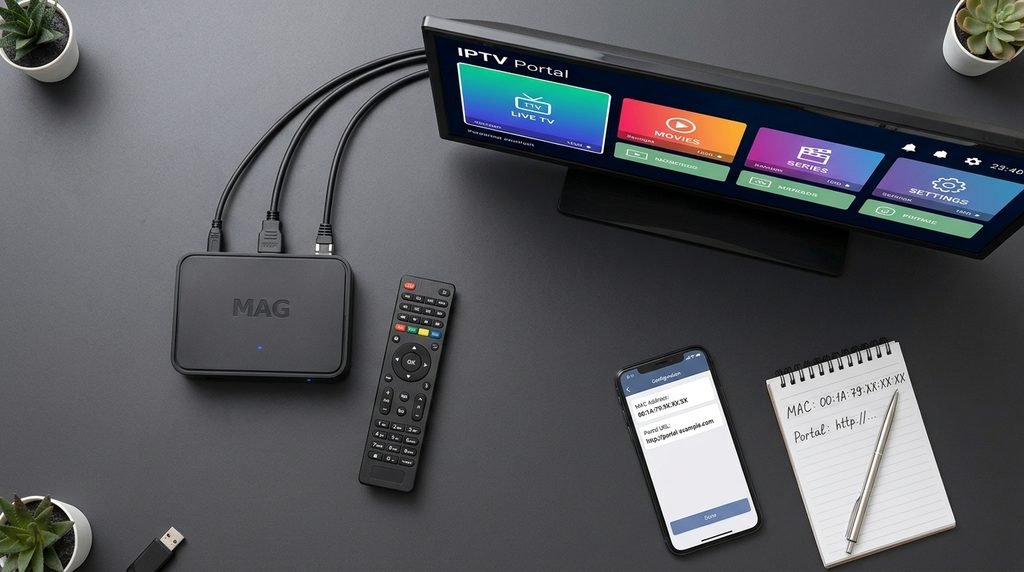
A MAG Box IPTV provider subscription differs significantly from standard Android APK or smartphone installations. Because Infomir MAG set-top boxes run on proprietary Linux-based operating systems rather than Android TV, they rely on Stalker middleware and MAC address authentication rather than username and password logins. This architecture ensures high-speed hardware decoding and stable channel zapping, making it a preferred choice for residential television setups. When users integrate Xtreme HD IPTV on a MAG device, the hardware interacts directly with the server portal through a registered MAC address, bypassing the need for third-party application downloads.
Supported MAG Hardware Models
Different MAG models handle streaming resolutions and codecs differently based on their internal processors and firmware capabilities. Legacy devices such as the MAG 254 handle standard definition and 720p or 1080p HD streams efficiently using H.264 codecs. Newer units like the MAG 424w3 and MAG 520 support 4K ultra-high-definition playback, HEVC (H.265) hardware decoding, and integrated dual-band Wi-Fi or Gigabit Ethernet connections. Ensuring your hardware matches your subscription stream quality prevents buffering and audio-video desynchronization during live sports broadcasts. For a detailed look at hardware compatibility across various streaming boxes, consult technical specifications provided by Amazon.
Portal URL and MAC Address Fundamentals
The core mechanism connecting your television hardware to an Xtreme HD IPTV subscription is the unique Media Access Control (MAC) address printed on the sticker at the bottom of your set-top box. This twelve-character hexadecimal identifier acts as your digital signature on the provider server. When combined with an authorized portal URL—typically structured around Stalker Middleware—the server recognizes your device and loads your customized channel lineup, electronic program guide (EPG), and video-on-demand library automatically upon boot.
Step-by-Step Guide to Activating Your MAG Box IPTV Subscription
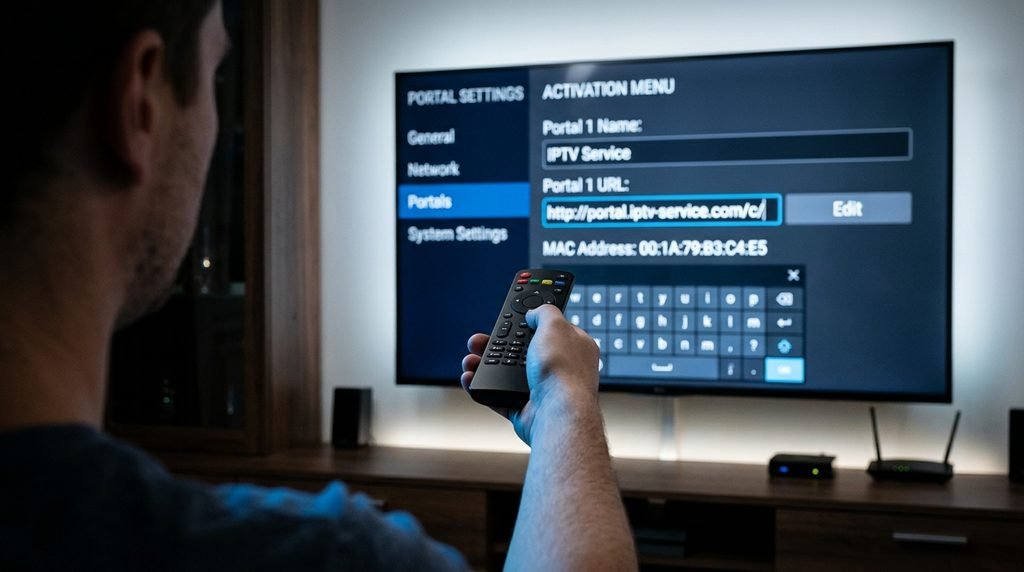
Configuring a dedicated set-top box requires precise navigation through system settings to ensure uninterrupted communication with the streaming server. Following a structured procedure prevents common connection errors and ensures your electronic program guide loads correctly.
Finding Your Device MAC Address
Before purchasing or activating an Xtreme HD IPTV plan, you must locate your hardware identifier. Power on your MAG box while it is disconnected from any active portal to prevent boot loops. Navigate to the inner system settings menu by pressing the “Settings” or “Gear” button on your original Infomir remote control. Select “System Settings,” then choose “Status” or “Network Information.” Locate the field labeled “MAC address,” which appears in a standard format such as 00:1A:79:XX:XX:XX. Copy this address accurately, as any typographical error will prevent the server from authorizing your connection. You can review official setup documentation via Windows Central for broader context on network configuration best practices.
Configuring the Portal URL in Inner Portal Settings
Once your MAC address is registered with your provider, you must input the portal URL into your device firmware. Access the inner settings menu again and select “Servers,” followed by “Portals.” In the “Portal 1 Name” field, enter a descriptive label such as Xtreme HD IPTV. In the “Portal 1 URL” field, paste the exact server address provided in your activation email. Press “OK” or “Save,” then exit the settings menu and restart your MAG box entirely by unplugging the power cable for ten seconds. Upon rebooting, the device will handshake with the server, loading your encrypted channel categories and interactive program guide. For additional insights into optimizing streaming connections, refer to reporting by CNN.
Original Asset: MAG Box IPTV Setup and Troubleshooting Matrix
The following reference matrix outlines common operational states, root causes, and verified resolutions for MAG set-top box configurations, compiled from standard IPTV technical documentation.
| Operational Issue | Likely Root Cause | Verified Resolution Strategy |
| “Portal Server is Down” Error | Incorrect portal URL or server maintenance | Double-check URL syntax in inner settings; verify active subscription status with your provider. |
| Loading Bar Stuck at 10% | Unregistered or mistyped MAC address | Confirm exact MAC address characters with your provider support team; ensure no trailing spaces exist. |
| Audio Playing Without Video | Unsupported stream codec on legacy hardware | Switch stream profile settings or upgrade to a 4K-capable MAG model like the MAG 520. |
| Electronic Program Guide (EPG) Empty | Outdated time zone or cache corruption | Navigate to inner settings, update local time zone settings, and restart the portal service. |
Frequently Asked Questions About MAG Box IPTV Provider Subscriptions
How do I find my MAG box MAC address?
Locate the MAC address by checking the physical sticker on the bottom of your set-top box or by navigating to Inner Settings > System Settings > Status on your device interface.
Why does my MAG box display a portal loading error?
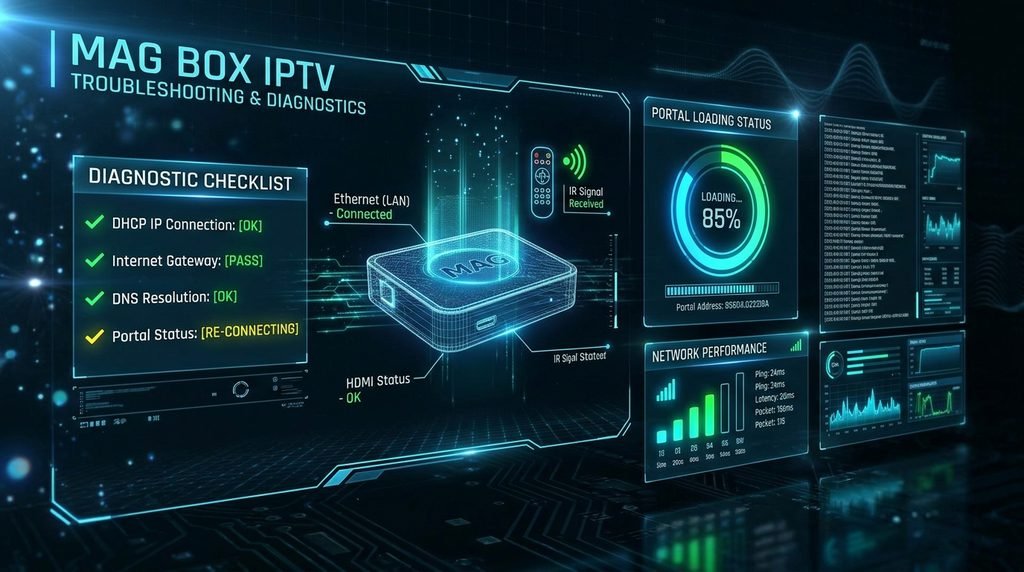
Portal loading errors usually occur due to an incorrect portal URL, an unregistered MAC address, or temporary server maintenance by your IPTV provider.
Do I need to install an app on my MAG box?
No applications installation is required. MAG boxes run on Linux firmware with built-in Stalker middleware that connects directly via the configured portal URL.
Can I use a VPN with a MAG set-top box?
MAG boxes do not natively support custom VPN client applications. To use a VPN, configure it directly at the router level or use an Ethernet-connected hardware VPN gateway.
How do I update the channel list on my MAG box?
Channel lists update automatically when the device boots up. You can also manually reload the portal by restarting the device from the inner settings menu.
Ready to configure your device? Explore our detailed MAG Box IPTV Provider Subscription Guide for advanced server configurations and instant activation steps.