
TiviMate Setup Guide: Install, Add Playlist & Fix EPG (2026)
Setting up TiviMate is straightforward once you have the correct application, a compatible streaming device, and your IPTV playlist information. However, choosing the wrong installation method or entering incorrect connection details can prevent the application from loading your channels.
This TiviMate setup guide explains the installation process, playlist configuration, EPG settings, and troubleshooting steps for compatible Android TV, Google TV, and Fire TV devices.
Xtreme HD IPTV publishes this guide to help readers understand how to configure TiviMate as a third-party media player. TiviMate itself is developed separately and does not provide television channels or an IPTV subscription.
Quick Answer: To set up TiviMate, install the application on a compatible Android TV-based device, open Add Playlist, and enter your provider’s Xtream Codes credentials or M3U URL. Allow the playlist to load, configure your EPG if necessary, and check that your channels display correctly.
Trust and Methodology
- Publisher: Xtreme HD IPTV.
- Author: Xtreme HD IPTV Editorial Team.
- Last updated: November 4, 2026.
- Research basis: Official TiviMate application information, Google installation documentation, Amazon Fire TV developer documentation and publicly accessible setup tutorials.
- Evaluation criteria: Device compatibility, installation methods, supported playlist formats, EPG configuration and common troubleshooting issues.
- Hands-on testing: This article is documentation-based. No independent device testing or performance measurements are claimed.
Table of Contents
TiviMate setup guide: What Do You Need Before Setting Up?
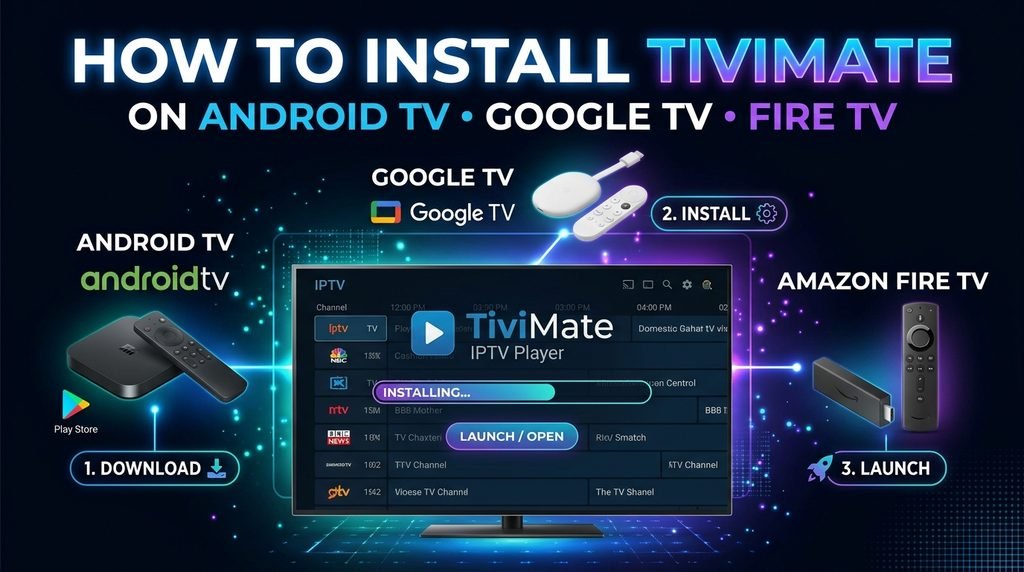
To set up TiviMate, you need a compatible Android TV, Google TV, or Android-based Fire TV device, the application, and an IPTV playlist from a source you are authorized to access. You should also have a separate EPG address when your playlist does not include television guide information.
What Is TiviMate and What Does It Actually Do?
TiviMate is an IPTV media player designed primarily for television screens and remote-control navigation.
It allows users to organize and watch playlists through a television-style interface. The application supports several IPTV connection formats, including:
- M3U playlists.
- Xtream Codes API.
- Stalker Portal.
Its features include an electronic program guide, channel groups, favorites, search, recording, catch-up and multiview, depending on the source, device and applicable application features. Apps on Google Play
One distinction is essential: TiviMate is not an IPTV provider.
The application does not supply channels, movies, television programs or streaming subscriptions. Users must provide their own playlists from sources they are entitled to access.
This also means an IPTV subscription and TiviMate Premium are two separate things.
Which Devices Are Compatible With TiviMate in 2026?
TiviMate is intended for Android TV devices and is not optimized for touchscreen phones and tablets. However, the operating system running a streaming device determines which installation method is available. Apps on Google Play
Here is a compatibility reference for 2026.
| Device | Compatibility and installation |
|---|---|
| Android TV boxes | Compatible Android TV installation |
| Google TV devices | Install through Google Play when available |
| NVIDIA Shield TV | Android TV installation |
| Fire TV Stick 4K Max (2nd Gen) | Android-based Fire OS |
| Fire TV Stick 4K Plus (2025) | Android-based Fire OS |
| Fire TV Stick 4K Select (2025) | Vega OS; standard Android APK installation is not supported |
| Fire TV Stick HD (2026) | Vega OS; standard Android APK installation is not supported |
| Fire TV Stick 4K (3rd Gen, 2026) | Vega OS; standard Android APK installation is not supported |
Amazon’s current developer documentation distinguishes Fire OS devices from newer Vega OS models. For example, it lists the 2025 Fire TV Stick 4K Plus under Fire OS 8, while the 2025 4K Select and newer 2026 streaming sticks use Vega OS. Amazon Fire TV+1
Important compatibility warning
Vega OS devices distribute applications through the Amazon Appstore rather than supporting ordinary Android APK sideloading. Do not follow the traditional Downloader installation method on these devices. Check the available Appstore applications instead. Amazon Developer Community
What Information Do You Need Before Installation?
Prepare the following information before opening TiviMate:
| Requirement | What you need |
|---|---|
| Compatible device | Android TV, Google TV or compatible Fire OS device |
| IPTV login | Your provider’s connection credentials |
| Xtream Codes | Server URL, username and password |
| M3U | Complete playlist URL |
| Stalker Portal | Portal address and any required device-registration details |
| EPG | Separate XMLTV URL when necessary |
| Internet | A stable broadband connection |
Make sure you receive your connection details directly from your provider.
When entering credentials, preserve the complete server address, including its protocol and port number when supplied. Avoid removing URL parameters or changing the format.
How Do You Install TiviMate on Your Device?
The correct TiviMate installation method depends on your device’s operating system. Android TV and Google TV users can use Google Play when the application is available, while compatible Fire OS devices can use the official Android installation method. Vega OS requires a separate compatibility check.
How to Install TiviMate on Android TV and Google TV
The simplest installation method is through the Google Play Store.
Follow these steps:
- Switch on your Android TV or Google TV device.
- Open the Google Play Store or the Apps section.
- Select Search.
- Enter TiviMate IPTV Player.
- Check that the developer is Armobsoft FZE.
- Select Install.
- Wait for the installation to complete.
- Open TiviMate from your applications menu.
Google’s official installation instructions explain how to search for applications and install them on Google TV and Android TV. Google TV Help+1
You can also access the official application listing here:
TiviMate IPTV Player – Google Play
How to Install TiviMate on Compatible Fire TV Devices
For compatible Android-based Fire TV models, TiviMate’s official website provides an APK installation method.
Before proceeding, confirm that your streaming device runs Fire OS rather than Vega OS.
Step 1: Open the official TiviMate website
Visit:
The official website provides the Android APK download option and lists the following Downloader information:
- Downloader code:
272483 - Official APK address:
tivimate.com/apk
TiviMate IPTV Player
Step 2: Prepare your Fire TV device
- Install the Downloader application from the Amazon Appstore.
- When your Fire OS version requires it, enable permission for Downloader to install applications from unknown sources.
- On some Fire OS versions, Developer Options can be found under:
- Settings → My Fire TV → Developer Options.
If Developer Options is missing, Amazon documents a method that involves selecting the device name seven times under About. Menu labels can vary by software version. Amazon Fire TV
Step 3: Download TiviMate
- Open Downloader.
- Enter
272483or the official addresstivimate.com/apk. - Follow the download instructions.
- Confirm the installation when prompted.
- Open TiviMate after the installation finishes.
Only use the official TiviMate download source. Avoid modified APK files and unofficial download codes.
For additional protection, disable the installation permission for Downloader when you have finished installing the application.
Step 4: Launch the application
- Open TiviMate from your Fire TV applications.
- You should now be able to access its playlist configuration screen, provided your device and application version are compatible.
Do You Need TiviMate Premium?
You do not need to confuse TiviMate Premium with an IPTV subscription.
TiviMate Premium is an application upgrade that unlocks additional player features. It does not supply channels, streams or television subscriptions.
The separate TiviMate Companion application is designed to unlock Premium on devices without Google Play and manage activated devices. It is not the IPTV player itself. Applications sur Google Play
My recommendation is to complete the initial application installation and understand your playlist requirements before deciding whether you need the Premium upgrade.
How Do You Add an IPTV Playlist and Configure EPG?
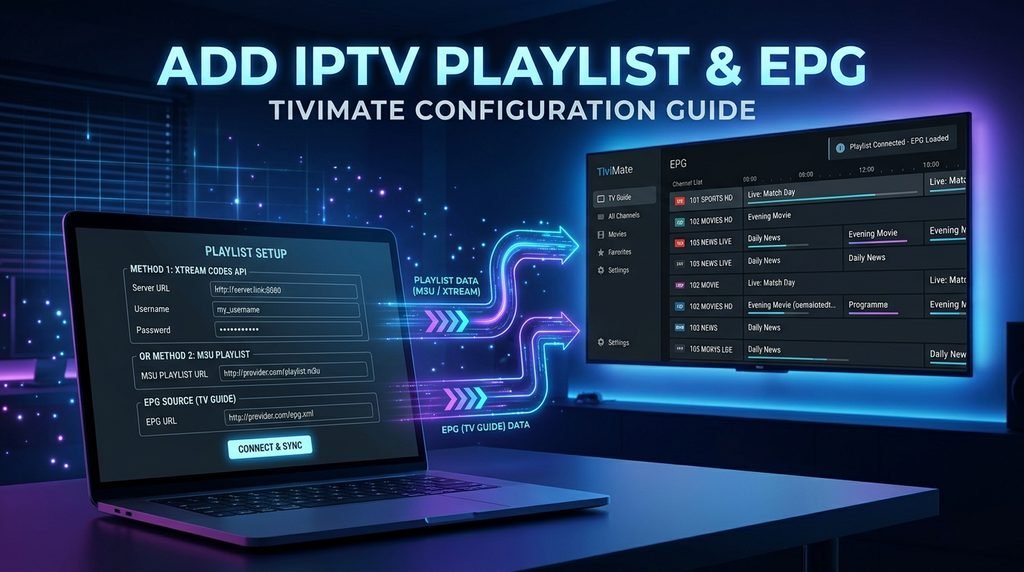
After installing TiviMate, open the application and select Add Playlist. Choose the connection method that matches the exact information supplied by your provider: Xtream Codes API, M3U Playlist or Stalker Portal.
How to Add Xtream Codes API Credentials
Xtream Codes is a connection method that uses three main pieces of information.
- Server URL.
- Username.
- Password.
Follow these steps:
- Open TiviMate.
- Select Add Playlist.
- Choose Xtream Codes API.
- Enter the server URL provided by your IPTV provider.
- Enter your username.
- Enter your password.
- Select Next.
- Allow TiviMate to connect and retrieve the available playlist information.
- Assign a recognizable name to your playlist.
- Finish the setup.
Example of the required information:
| Field | Example |
|---|---|
| Server URL | http://server.example.com:8080 |
| Username | your_username |
| Password | your_password |
These are illustrative placeholders, not working login credentials.
Make sure that the server URL includes the correct protocol and port number when required.
If the application reports an authentication error, recheck the credentials before changing other settings.
How to Add an M3U Playlist
Some IPTV providers supply a complete M3U playlist URL rather than separate Xtream Codes credentials.
The procedure is slightly different.
- Open TiviMate.
- Select Add Playlist.
- Choose M3U Playlist.
- Enter the complete M3U URL.
- Select Next.
- Wait for the application to retrieve the playlist.
- Give the playlist a name.
- Finish the setup.
An M3U URL can contain additional parameters. Do not shorten or modify the address unless your provider specifically instructs you to do so.
If your provider sends a separate EPG address, keep it available because it may be needed in the next configuration step.
What about Stalker Portal?
TiviMate also supports Stalker Portal connections.
Use this option only when your provider specifically supplies a portal connection and any required device-registration information. Do not attempt to use Xtream Codes credentials in a Stalker Portal field.
How to Configure the Electronic Program Guide
The Electronic Program Guide, commonly called EPG, displays television program information alongside your channel list.
Without functioning EPG data, you may see channels without program descriptions or a schedule.
For a working TV guide, follow these steps:
- Open TiviMate.
- Navigate to Settings.
- Open the EPG section.
- Check whether an EPG source is already available.
- If necessary, choose the option to add an EPG source.
- Enter the XMLTV or EPG URL supplied by your provider.
- Save the source.
- Start an EPG update or refresh.
- Return to the television guide and check whether program information appears.
The exact menu names can differ between application versions.
Important: An IPTV provider may include EPG information with an Xtream Codes connection, but this is not guaranteed. If the guide remains empty, request the separate EPG URL from the provider.
Also check your device’s time and time zone when program schedules appear at the wrong times.
How to Organize Your Channels
After your playlist and EPG have loaded, you can organize TiviMate to make daily navigation easier.
Consider these adjustments:
- Add regularly watched channels to Favorites.
- Hide channel groups that you do not use.
- Give playlists recognizable names.
- Check the program information before relying on scheduled recordings.
- Review parental-control settings when multiple people use the same television.
Test several channels and the TV guide before considering the configuration complete.
If you are still comparing different applications, see our guide to the best IPTV apps for Firestick with subscription options.
How Do You Fix Common TiviMate Setup Problems?
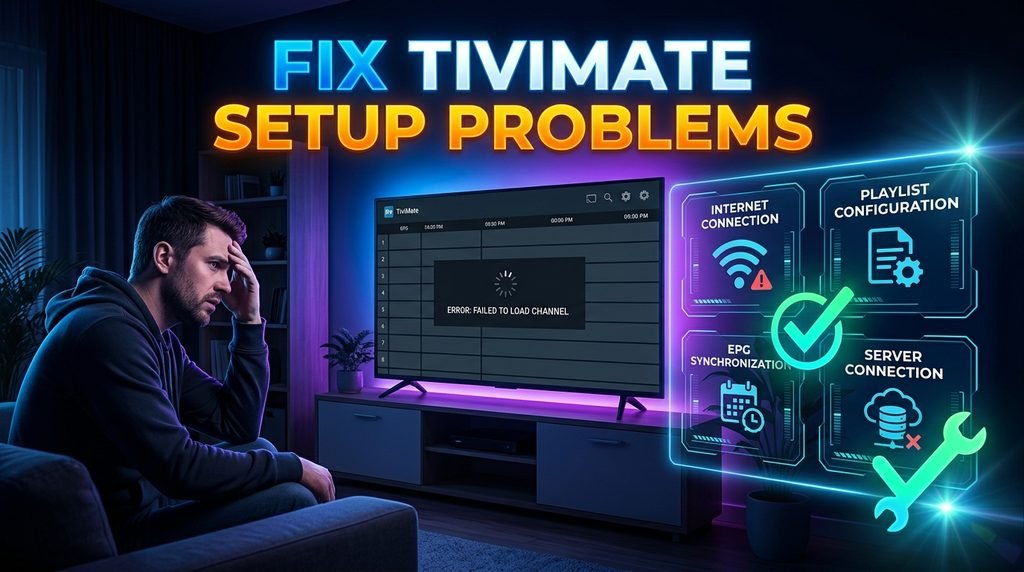
Most TiviMate setup problems fall into four categories: application installation, incorrect login credentials, playlist loading errors or missing EPG information. Identify which part is failing before changing settings, because the player and the IPTV source are separate components.
TiviMate Troubleshooting Matrix
This troubleshooting matrix provides a practical starting point for identifying common configuration errors.
| Problem | Possible cause | Recommended solution |
|---|---|---|
| Invalid username or password | Incorrect credentials | Verify the URL, username and password |
| Connection error | Incorrect server address or unavailable server | Check the complete server URL and contact your provider |
| Playlist loads without channels | Incomplete playlist or account issue | Refresh the playlist and verify account status |
| EPG displays No Information | Missing or incorrect guide source | Add the correct XMLTV URL and refresh |
| Program times are incorrect | Time-zone or EPG offset problem | Check device time and EPG time settings |
| Channels keep buffering | Network, stream or device issue | Test the connection, restart the device and compare other channels |
| TiviMate installation is blocked | Unsupported device operating system | Check whether the Fire TV uses Fire OS or Vega OS |
A useful diagnostic technique is to identify how many channels are affected.
If one channel fails while the rest work correctly, the problem may relate to that particular stream.
If every channel fails, investigate the playlist credentials, network connection or provider availability.
When the EPG is missing but live channels work, investigate guide configuration separately rather than deleting your entire playlist.
For readers using a different application, our separate IPTV Extreme installation guide for Firestick covers that player’s installation process.
Frequently Asked Questions
Is TiviMate an IPTV service?
No. TiviMate is a media player. It does not include channels, streams, or a subscription; you must add a playlist from a source you are authorized to use.
Can I install TiviMate on any Fire TV Stick?
No. The APK installation method applies only to compatible Fire TV devices running Android-based Fire OS. Vega OS devices distribute applications through the Amazon Appstore instead.
What login details do I need for TiviMate?
For Xtream Codes, you need the server URL, username, and password. For M3U, you need the full playlist URL. Use Stalker Portal only when your provider supplies portal details.
Should I use Xtream Codes or M3U?
Use the format your provider issued. Xtream Codes uses a server address plus username and password; M3U uses a complete playlist URL. Neither format is universally better.
Why is my TiviMate EPG blank?
Your playlist may not include guide data, or the EPG source may not be configured or refreshed. Ask your provider for an XMLTV URL, then add and update it in TiviMate.
Do I need TiviMate Premium to watch channels?
Premium unlocks TiviMate app features; it does not include channels or streams. You need a separate playlist source regardless of whether you upgrade.
Next-step block
Before purchasing or configuring any IPTV subscription, confirm that your streaming device supports the player and that you have received the correct connection information.
Readers evaluating Xtreme HD IPTV can review the current subscription plans and confirm the details of their chosen service before configuring TiviMate.