
IPTV Subscription for LG Smart TV WebOS: 9 Smart Tips For 2026
Choosing an IPTV subscription for LG Smart TV WebOS is different from choosing a subscription for a Firestick or Android TV box because the television itself decides which applications you can install directly. LG WebOS can provide a very clean setup when the right player is available: one remote, no extra HDMI device, no extra power cable, and no need to switch inputs every time you want to watch. But that convenience only works when the television model, WebOS app selection, player features, provider login format, network connection, and channel lineup all fit together properly.
That is why buying an IPTV subscription for LG Smart TV WebOS should begin with the television rather than the provider’s sales page. A service can advertise thousands of channels, sports, international content, HD, 4K, and long-term discounts, yet still be a poor fit if the LG Content Store does not offer a player that supports the credentials you receive. The subscription and the television app are usually separate pieces of the setup, so compatibility matters before price.
This guide focuses on the real LG WebOS experience instead of giving you another numbered checklist. You will first confirm what your television can run, then choose a player, match the login format, test the service on the actual TV, judge picture quality and network stability, organize the EPG and favorites, and finally decide whether a short or long plan makes sense. The goal is to find an IPTV subscription for LG Smart TV WebOS that feels easy to live with every evening, not one that merely looks impressive during checkout.
Table of Contents
Start With the LG TV, Not the Subscription
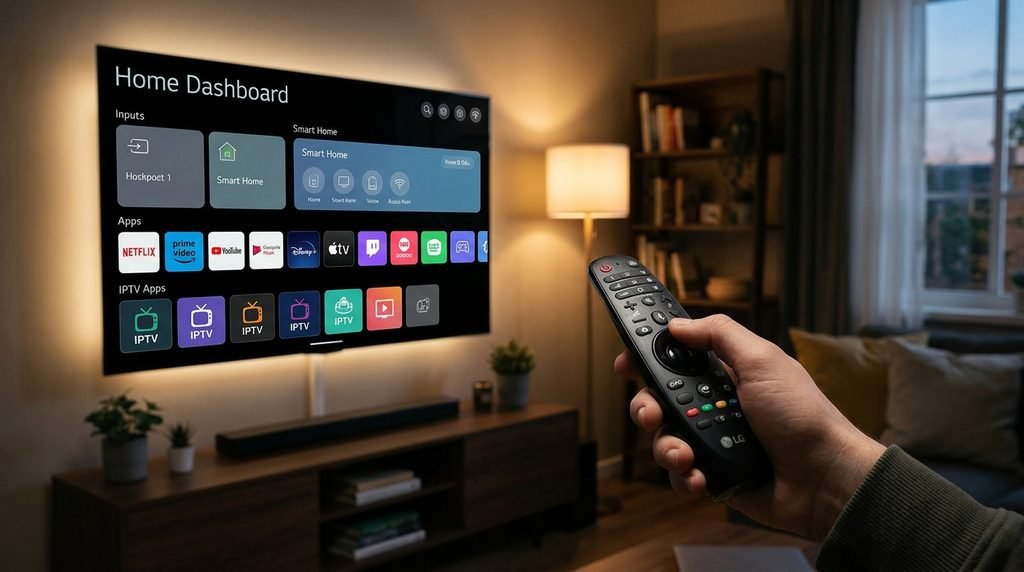
The most important step happens before you pay anything: identify the exact LG television you own. LG has released many generations of WebOS, and app availability can vary by model year, region, software version, and the support decisions made by individual app developers. An IPTV player available on a recent LG OLED in one country may not appear on an older model or on a television registered to another region. That means an IPTV subscription for LG Smart TV WebOS should never be purchased on the assumption that every LG Smart TV has the same app selection.
Open the television settings and locate the model and software information. Then open the LG Content Store or Apps area and search for IPTV players before choosing the subscription. Check whether the television software is up to date, whether the app you want is available in your region, and whether the television still has enough storage to install and run it comfortably. If you plan to use Wi-Fi, confirm that the TV connects reliably where it is installed; if Ethernet is available, keep that option in mind as a useful comparison later.
Instructions written for Android TV or Firestick should not automatically be applied to WebOS. LG uses its own operating system and app environment, so installation methods, player choices, settings, and supported formats can be different. A good IPTV subscription for LG Smart TV WebOS is one that fits the software environment already inside the television instead of forcing you to fight against it.
How WebOS Changes the IPTV Setup
WebOS is designed around television-friendly applications controlled with the LG remote. That can make an IPTV subscription for LG Smart TV WebOS feel simpler than a setup built around an external box, but the trade-off is that app choice can be more limited. Android-based devices often provide a wider selection of IPTV players, while LG owners depend on what is currently available through the television’s supported app ecosystem.
This limitation is not automatically a problem. If the right player is available, direct WebOS viewing can be one of the cleanest ways to use IPTV. An IPTV subscription for LG Smart TV WebOS should take advantage of that simplicity instead of creating extra work. The television turns on, the app opens, your favorites and EPG are already there, and there is no second remote to manage. The important question is whether the available player supports the features and login format required by your IPTV subscription for LG Smart TV WebOS.
IPTV Player vs IPTV Provider: Know the Difference
The IPTV player and the IPTV subscription are usually separate products. The player provides the interface on your LG television, while the provider supplies the account or playlist information and the available channels. Installing a player does not automatically give you a television subscription, and purchasing an IPTV subscription for LG Smart TV WebOS does not guarantee that every WebOS player can use it.
An IPTV subscription for LG Smart TV WebOS is much easier to choose once this separation is clear. This distinction prevents a very common buying mistake. Someone can pay for a premium-looking WebOS app, open it, and then discover that it requires a playlist or account from an IPTV provider. The reverse can happen too: a user buys a subscription first and then realizes the available LG player does not support the login method supplied. Both products can work exactly as designed while still being incompatible with each other.
If you are considering Xtreme HD IPTV, review the IPTV installation guide before making the purchase. The guide can help you understand the setup route, while the current channel list lets you check whether the content you care about is actually present. Those two checks should happen before you judge an IPTV subscription for LG Smart TV WebOS by price alone.
Match the Player to the Login Format
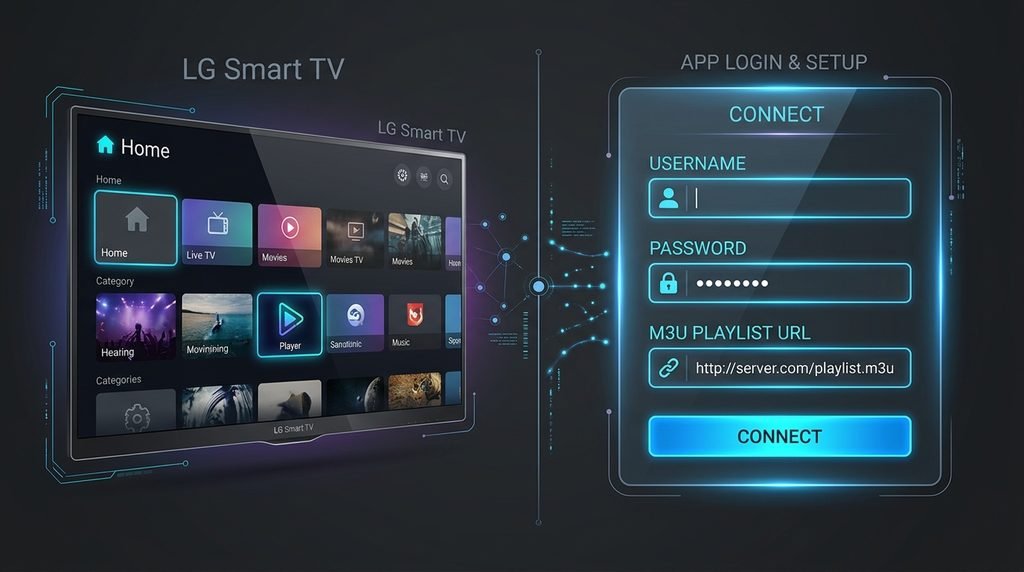
For an IPTV subscription for LG Smart TV WebOS, login compatibility is a deal-breaker rather than a minor technical detail. Before subscribing, confirm what account format the provider supplies and compare it with the options supported by the WebOS player you intend to use. An IPTV subscription for LG Smart TV WebOS may rely on an M3U playlist, Xtream-style credentials, a username and password with server information, a portal-style setup, or another provider-specific method. The names can sound technical, but the practical question is simple: does the player accept the information the provider gives you?
| Login Method | Typical Information | What to Confirm in the LG Player |
|---|---|---|
| M3U | Playlist URL | The player can import and refresh M3U playlists |
| Xtream-style | Username, password, server URL | The player has fields for those credentials |
| EPG | Guide URL or integrated guide data | The player can load and display guide information |
| Provider-specific account | Account credentials | The app explicitly supports that account method |
| Portal-style setup | Provider-specific portal details | The selected WebOS player supports that format |
Do not use credentials copied from another person’s tutorial or screenshot. Use only the account information issued for your own IPTV subscription for LG Smart TV WebOS. Even when two users have the same player, their subscription details are not interchangeable.
Check the Content Before You Pay
An IPTV subscription for LG Smart TV WebOS should be judged by useful content rather than raw catalog size. A huge channel count is one of the easiest things to advertise and one of the weakest ways to choose an IPTV subscription for LG Smart TV WebOS. Most households repeatedly watch a relatively small group of channels, sports competitions, movie categories, news networks, or regional programming. If those essentials are missing, ten thousand extra channels do not make the subscription useful.
Use the current IPTV channel list and separate what you want into three groups: essential, regular, and bonus. Essential content is anything that would make you reject the service if it were missing. Regular content matters but is not a deal-breaker. Bonus content is nice to have but should not influence the purchase heavily. This makes comparing an IPTV subscription for LG Smart TV WebOS far more practical than scrolling through a catalog without priorities.
| Priority | Meaning | Example |
|---|---|---|
| Essential | You would not subscribe without it | Your main sports network or home-country channels |
| Regular | You watch it often | News, movies, general entertainment |
| Bonus | Useful but not necessary | Extra regional or niche channels |
During the trial, start with the essential group. The right IPTV subscription for LG Smart TV WebOS should prove that the content you actually care about works before you spend time exploring everything else.
Why the Trial Should Happen on the Actual LG TV
A phone can prove that account credentials are valid, but it cannot prove that the complete LG experience is good. The WebOS player may load more slowly, the television may have weaker Wi-Fi reception than your phone, the remote may make navigation awkward, or the EPG may behave differently on the TV app. That is why the most valuable test of an IPTV subscription for LG Smart TV WebOS happens on the exact television you intend to use.
A trial is where an IPTV subscription for LG Smart TV WebOS should prove that the complete setup works. If available, use the Xtreme HD IPTV free trial after installing and preparing the WebOS player. Do not waste the trial period searching for an application or reading setup instructions. Have the television ready, then use the available access to evaluate the actual viewing experience.
Test your essential channels, one or two longer programs, sports if they matter, HD streams, any available 4K content, audio synchronization, EPG loading, search, favorites, channel switching, app restart behavior, and evening performance. An IPTV subscription for LG Smart TV WebOS should remain comfortable after an hour of normal use. One channel opening successfully for five minutes is not enough evidence for a long subscription.
What Daily Use Should Feel Like on WebOS
The best IPTV subscription for LG Smart TV WebOS should become easier after the initial setup. You should not need to search the entire channel library every evening, re-enter credentials regularly, or fight with the remote just to return to a favorite station. Daily usability matters because small annoyances that seem minor during a ten-minute test become much more frustrating after several weeks.
An IPTV subscription for LG Smart TV WebOS should feel natural during repeated everyday use. Pay attention to how quickly the app opens, whether the playlist refreshes reliably, how responsive the remote feels, whether categories are logically organized, and how many steps it takes to move from one favorite channel to another. A clean television interface is valuable because the whole point of running IPTV directly on an LG television is convenience. If using the native app feels more complicated than using an external device, the advantage of a direct IPTV subscription for LG Smart TV WebOS setup becomes smaller.
How to Judge HD and 4K Properly
Modern LG televisions, particularly 4K and OLED models, can make picture quality differences very noticeable. However, the television cannot create true 4K detail if the original source stream is lower resolution. Picture quality depends on the original broadcast, encoding, bitrate, provider, player, network connection, and television processing. A provider writing “4K” on a sales page does not guarantee that every channel in an IPTV subscription for LG Smart TV WebOS is native 4K.
Picture quality can make or break an IPTV subscription for LG Smart TV WebOS on a large LG display. Judge the picture by watching real content for more than a few seconds. Sports are useful for testing motion because camera pans and fast player movement can expose frame or compression problems. Movies are useful for darker scenes, gradients, and fine detail. News channels can reveal whether text and graphics remain sharp. Also watch for audio delay, slow startup, frequent resolution changes, and buffering. Stable Full HD can produce a better experience than an unstable 4K-labeled stream.
Do Not Let Resolution Labels Decide the Purchase
If one IPTV subscription for LG Smart TV WebOS advertises 4K more aggressively than another, that alone should not win the comparison. A smooth HD channel you can watch for two hours is more valuable than a higher-resolution stream that stops every few minutes. Reliability, motion handling, audio sync, and startup speed all belong in the picture-quality decision.
Wi-Fi vs Ethernet on an LG Smart TV
Your LG television may support Wi-Fi, Ethernet, or both depending on the model. Wi-Fi is convenient and can work perfectly for IPTV, but performance can be affected by distance, walls, interference, router placement, and other devices using the same network. If an IPTV subscription for LG Smart TV WebOS buffers during testing, compare the network before assuming the subscription itself is the problem.
Network testing helps you judge an IPTV subscription for LG Smart TV WebOS fairly instead of blaming the wrong component. Start by testing several unrelated channels. Then open another streaming application on the same television. If Netflix, YouTube, and other services also struggle, the local network or television deserves attention. If only one IPTV channel buffers while many others work, the individual stream becomes more suspicious. If everything improves when Ethernet is connected, Wi-Fi is likely contributing to the problem.
| What You See | Likely Area to Check | Useful Next Test |
|---|---|---|
| One channel buffers | Individual stream | Test several other channels |
| Every IPTV channel buffers | Network, app, or broader service issue | Open another video service |
| Every streaming app struggles | TV or home network | Restart network and compare another device |
| Ethernet fixes the problem | Wi-Fi | Improve router placement or wireless coverage |
| Another device works perfectly | LG app, TV network, or WebOS performance | Focus on the television setup |
A good IPTV subscription for LG Smart TV WebOS should be tested on the same network connection you plan to use every day. Testing only on a phone next to the router can hide problems that appear when the television is farther away.
EPG, Search, Favorites, and Remote Navigation
Electronic Program Guide data can turn a giant IPTV catalog into something that feels much closer to normal television. Without an EPG, the app may show hundreds or thousands of names with little context. With useful guide data, an IPTV subscription for LG Smart TV WebOS becomes easier to browse because you can see what is currently playing and what comes next.
For an IPTV subscription for LG Smart TV WebOS, the EPG should reduce effort rather than add another layer of confusion. During the trial, open the guide repeatedly and see whether it loads fast enough to use comfortably. Check whether program times look correct, whether channel names match the guide entries, and whether returning from the EPG to playback feels smooth. Also test search and favorites. These are not decorative features; they determine whether a large library is practical with a television remote.
Build Favorites Immediately
As soon as the playlist loads, add the channels you use most. A favorites list containing sports, news, movies, local television, children’s programming, and international channels can turn an IPTV subscription for LG Smart TV WebOS with thousands of entries into a simple personal lineup. The goal is to reduce daily navigation, not to create another giant list inside the favorites section.
LG WebOS vs Fire TV or Android TV
LG WebOS and external streaming devices can both produce good IPTV setups, but they offer different strengths. A direct IPTV subscription for LG Smart TV WebOS keeps the setup clean because the television itself runs the player. Android TV and Fire TV devices usually provide a broader selection of IPTV applications and more flexibility if you want to change players later.
| Feature | LG WebOS | Fire TV / Android TV |
|---|---|---|
| App source | LG Content Store | Platform app store and device-supported options |
| Player selection | Can be more limited | Usually broader |
| Extra hardware | Usually none | External device required unless built into TV |
| Remote simplicity | One-TV setup | May introduce another remote or interface |
| Best for | Clean native viewing when a good app exists | More app choice and flexibility |
The best IPTV subscription for LG Smart TV WebOS may not require any external hardware at all. If the player you want is already available on your LG television, a native IPTV subscription for LG Smart TV WebOS setup can be extremely convenient. If the WebOS app selection feels restrictive, adding an external box can expand your player choices without replacing a television that still has an excellent display.
What if Your LG TV Has No Good IPTV Player?
An older LG Smart TV can still have a great panel even when its software ecosystem no longer supports the applications you want. In that situation, the problem is not necessarily the television and not necessarily the IPTV subscription for LG Smart TV WebOS. The limitation may simply be the available WebOS player selection.
Before replacing the television, check the installation guide and see whether another compatible native app can use your subscription. If no suitable player exists, an external streaming device can provide a separate operating system while using the LG TV only as the display. Fire TV, Android TV, Google TV, or Apple TV hardware may expand your options depending on your preferences.
An IPTV subscription for LG Smart TV WebOS can therefore remain practical even when the native app selection is limited. This is often a better solution than buying a new television solely because one app is unavailable. Your IPTV subscription for LG Smart TV WebOS viewing can still happen on the same screen even when the actual player runs from an external device.
Choose Subscription Length Only After Testing
Subscription duration should be one of the final decisions. Once the player, login format, channel lineup, EPG, picture quality, network connection, and everyday navigation have passed your test, compare the current IPTV pricing plans. For broader context on television delivery, you can also review the general Television overview. Short plans usually cost less upfront and provide more flexibility, while longer plans may reduce the effective monthly price.
Someone buying an IPTV subscription for LG Smart TV WebOS for the first time can reasonably choose a shorter paid plan even after a successful trial. A trial shows whether the setup works today, but it cannot prove how every sports event, software update, network condition, or channel will behave for the next twelve months. Longer plans make more sense after you have enough real experience to know the service fits your household.
| Factor | Short Plan | Long Plan |
|---|---|---|
| Upfront cost | Lower | Higher |
| Flexibility | Higher | Lower |
| Effective monthly price | Often higher | Can be lower |
| Best fit | New or uncertain users | Users who already know the service well |
| Commitment risk | Lower | Higher |
Common LG WebOS IPTV Buying Mistakes
The biggest mistake is paying before checking which IPTV applications are available on the exact television. Another is confusing the player with the provider and assuming a paid app includes channels. Some buyers choose entirely by catalog size, while others commit to a year after a five-minute trial because the long plan looks cheaper. Those decisions ignore the parts of an IPTV subscription for LG Smart TV WebOS that determine whether it will actually be enjoyable.
- Buying before checking the LG model, WebOS version, and available players.
- Assuming the IPTV app and subscription are the same product.
- Choosing a provider whose login format does not match the WebOS player.
- Judging the service by channel count instead of essential content.
- Testing only on a phone rather than the actual LG television.
- Blaming the subscription for every buffer without checking the home network.
- Assuming every 4K label represents a stable native 4K source.
- Ignoring EPG, favorites, search, and remote-control usability.
- Buying a long plan before the IPTV subscription for LG Smart TV WebOS has proven itself over real viewing sessions.
- Posting usernames, passwords, M3U URLs, or server details in public support discussions.
A good setup should become simpler after the first day. Once the player is configured, the essential channels are saved, and the network is stable, the IPTV subscription for LG Smart TV WebOS should feel like television rather than a technical project.
Frequently Asked Questions
Can I use IPTV directly on an LG Smart TV?
Yes, when your television has a compatible WebOS IPTV player and that player supports the account format supplied by your provider. Check the LG Content Store on the actual television before purchasing an IPTV subscription for LG Smart TV WebOS because app availability can vary by model, software version, and region.
Does installing an IPTV app give me the subscription?
Usually not. The player and the IPTV subscription for LG Smart TV WebOS are generally separate. The player gives you the interface, while the provider supplies the account or playlist and available content. Confirm both pieces before paying so you do not end up with an app and subscription that cannot work together.
Can an LG Smart TV play 4K IPTV?
Yes, when the television supports 4K and the source, provider, player, network, and device performance can all deliver the stream properly. Do not assume every channel in an IPTV subscription for LG Smart TV WebOS is native 4K simply because the service advertises UHD content. Test actual streams and judge stability as well as resolution.
Can I test IPTV before purchasing a long plan?
Use the IPTV free trial when available and run it directly on the LG television. The best test of an IPTV subscription for LG Smart TV WebOS includes the real WebOS player, remote, Wi-Fi or Ethernet connection, essential channels, EPG, favorites, and longer viewing sessions.
What if my LG TV has no compatible IPTV player?
Check whether another native WebOS player supports the account before buying extra hardware. If not, an external Fire TV, Android TV, Google TV, or Apple TV device can provide another app environment while the LG television remains the display. You may still use the same IPTV subscription for LG Smart TV WebOS viewing even though the actual player runs on an external device.
Should I choose one month or twelve months?
New users usually benefit from a shorter commitment. After the IPTV subscription for LG Smart TV WebOS has worked reliably on your actual television, network, channels, and normal viewing schedule, a longer plan can become more attractive if it offers genuine savings. Review the current pricing options after testing.
Why does IPTV buffer on my LG TV but not on my phone?
The television may have weaker Wi-Fi reception, a different player, different decoding performance, or another local issue. Test several channels, another streaming application, and Ethernet if available. If the same IPTV subscription for LG Smart TV WebOS works elsewhere but not on the television, focus on the LG app, network, and device environment before replacing the account.
Final Verdict: Is IPTV on LG WebOS a Good Setup?
An IPTV subscription for LG Smart TV WebOS can create one of the cleanest IPTV setups available when the television, player, login format, and provider fit together correctly. Running everything directly on the LG TV means fewer devices and a simpler living-room setup, but that convenience should be verified before purchase. The television’s app selection is the foundation, so confirm the model and available players before comparing long subscription plans.
If you are considering Xtreme HD IPTV, use the channel list to confirm the content you actually care about, follow the installation guide to prepare the television, and use the free trial when available. Test the service on the LG television itself rather than relying on a phone. Watch real channels, use the EPG, build favorites, test HD and available 4K content, and compare Wi-Fi with Ethernet if playback is unstable.
Only after the full setup works comfortably should you compare the subscription pricing and decide how much commitment makes sense. A strong IPTV subscription for LG Smart TV WebOS should not merely load successfully. It should be easy to navigate with the remote, contain the channels your household actually uses, remain stable during longer viewing sessions, and fit your network and connection needs.
If WebOS provides the right player, using the television directly may be the simplest option. If the app ecosystem is too limited, keep the LG screen and add an external streaming device instead of replacing a perfectly good television. Either way, the best IPTV subscription for LG Smart TV WebOS is the one that proves itself on your actual hardware before you pay for a long plan.