
How to Install Xtreme HD IPTV: 7 Essential Setup Steps
Learning how to install xtreme hd iptv correctly ensures a smooth, high-definition streaming experience across your favorite entertainment devices. Whether you are setting up a dedicated streaming stick, an Android TV box, or a smart television, following a structured installation process eliminates common configuration errors and optimizes playback performance. This comprehensive guide walks you through essential prerequisites, precise installation steps for popular devices, and practical troubleshooting methods to get your service running efficiently.
Quick Answer
To install Xtreme HD IPTV, prepare your streaming device by enabling sideloading permissions, download a compatible IPTV media player application (such as IPTV Smarters Pro or TiviMate), enter your active subscription credentials or Xtream Codes API details, and load your channel playlist.
Table of Contents
Essential Prerequisites Before Installation
Before diving into device-specific installations, gathering the necessary account details and configuring your hardware network will save valuable time. Ensuring a stable high-speed internet connection and having your portal credentials ready are foundational steps for a successful setup.
Required Streaming Devices and Network Requirements
Xtreme HD IPTV is compatible with a wide range of modern streaming hardware, including Amazon Fire TV Stick, Android TV boxes, Apple TV, Nvidia Shield, and MAG boxes. A stable broadband connection of at least 25 Mbps is recommended for smooth 4K and HD streaming without lag. Review our detailed hardware breakdowns on the Firestick Setup Guide to ensure complete device compatibility.
Subscription Details and Login Credentials
When your account is activated, you will receive specific login parameters. Depending on the preferred player app, you will need either an M3U playlist URL, an EPG (Electronic Program Guide) URL, or Xtream Codes API credentials consisting of your username, password, and server URL. Keeping these details secure and accessible is vital before launching any IPTV player application on your device. For more details on active account options, explore the Pricing Plans Guide.
Step-by-Step Guide: How to Install Xtreme HD IPTV on Firestick
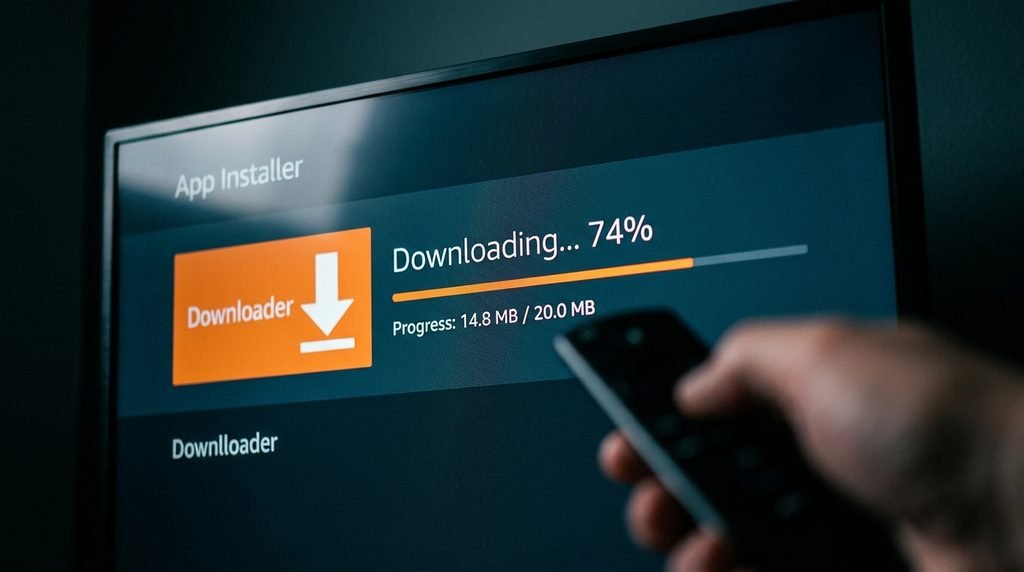
Amazon Firestick is one of the most popular platforms for streaming live TV and video-on-demand content. Because official media player apps are sometimes sideloaded via utility tools, following precise navigation menus is essential.
Enabling Apps from Unknown Sources
To install third-party applications on an Amazon Fire TV device, you must first enable Developer Options:
- Navigate to your Fire TV Settings gear icon from the main home screen.
- Select My Fire TV (or Device & Software on newer Fire OS versions).
- Click on About, then highlight your device name and click the OK/Select button 7 times consecutively until you see a notification stating “No need, you are already a developer.”
- Go back one menu to Developer Options, select Install Unknown Apps, and turn the switch On for the Downloader application.
Using the Downloader App
With sideloading enabled, you can easily fetch your preferred IPTV player:
- Open the Amazon Appstore, search for Downloader by AFTVnews, and download/install it.
- Open Downloader and enter the official download URL or shortcode for your chosen IPTV application in the URL input box.
- Click Go, allow the file download to complete, and select Install when prompted by the system prompt. For additional application choices, consult the Best Firestick IPTV Apps resource.
Configuring Your IPTV Player and Playlist Credentials
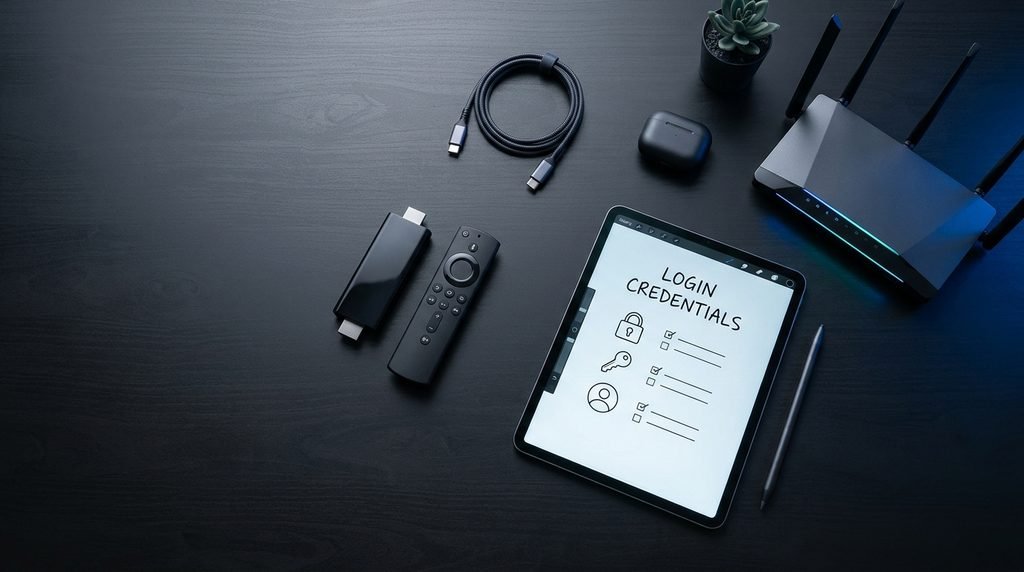
Once your media player app is installed, connecting your subscription stream requires entering your account details accurately into the application interface.
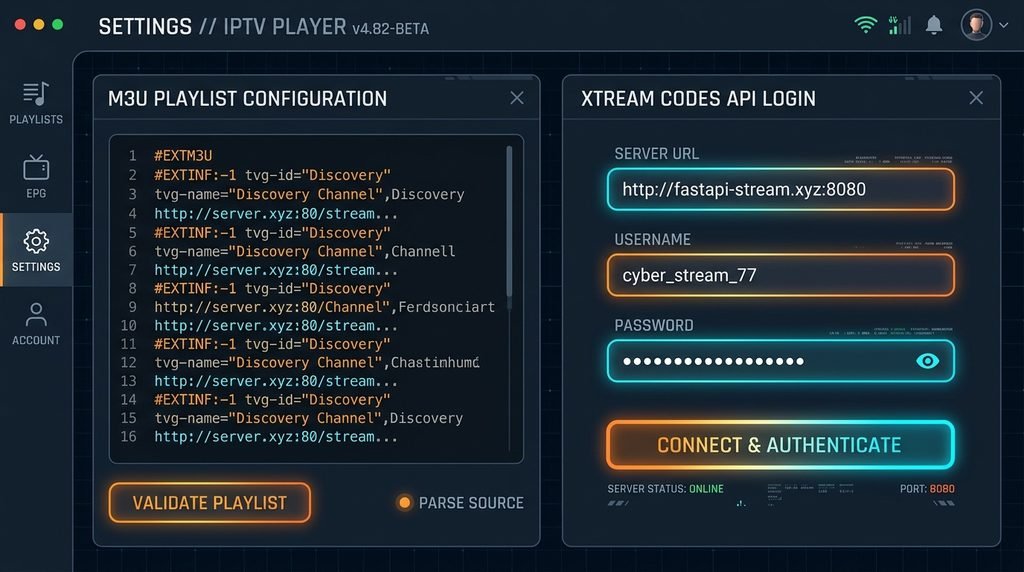
M3U Playlist vs. Xtream Codes API Login
Most advanced IPTV applications support multiple login methods:
- Xtream Codes API: This is the recommended login method because it automatically parses live TV, movies, and TV series into separate categories while pulling guide data seamlessly. You simply enter your Server URL, Username, and Password.
- M3U URL with EPG: This method requires pasting a long web address containing your subscription token. While functional, it may take longer to load large channel lineups compared to API logins.
For further assistance with portal configuration and account access, refer to the Portal Setup & Account Access guide.
Troubleshooting Common Installation and Connection Errors
Even with careful setup, users occasionally encounter minor hurdles during initial connection or playback. Understanding these scenarios helps maintain an uninterrupted viewing experience.
Addressing Login Portal and Buffering Issues
If your application displays a “Check URL” or “Authentication Failed” error, double-check your username, password, and server prefix for any typographical errors. Buffering issues can usually be resolved by clearing your device cache, restarting your home router, or switching to an Ethernet adapter for a wired network connection.
Frequently Asked Questions
What is required to set up Xtreme HD IPTV?
You need a compatible streaming device, an active internet connection, a media player application, and your official subscription login credentials.
Can I use Xtreme HD IPTV on multiple devices?
Multi-screen availability depends on your specific subscription plan tier. Check your account dashboard or provider guidelines for connection limits.
Why is my IPTV app failing to load channels?
Channel loading failures are commonly caused by expired subscription tokens, incorrect server URLs, or temporary internet connectivity disruptions.
Do I need a VPN to use IPTV services?
While many users stream without a VPN, a secure virtual private network can help bypass Internet Service Provider throttling in certain regions.
How do I update my electronic program guide (EPG)?
Most IPTV players feature a manual EPG refresh button within settings, or update guide data automatically upon app relaunch.
Sources / Further Reading
- Amazon Devices Support Documentation: Amazon Fire TV Help & Learning
- Android Developers Guide: Android TV Overview and Guidelines
- Apple Support: Set Up and Use Apple TV
Next Steps
To explore compatible subscription tiers or review instant setup options, visit the official Xtreme HD IPTV Homepage.