
Live TV Channel Live Streaming: Setup & Optimization Guide
Quick Answer
To access a live TV channel live stream efficiently, connect your streaming device to a stable internet network with a minimum download speed of 25 Mbps for HD or 50 Mbps for 4K resolution. Use standard protocols like HLS or DASH on compatible media players or smart TV platforms. Optimizing your local network with a wired Ethernet connection significantly reduces latency and prevents buffering during high-demand live broadcasts.
Table of Contents
Understanding Live TV Channel Live Streaming Technology
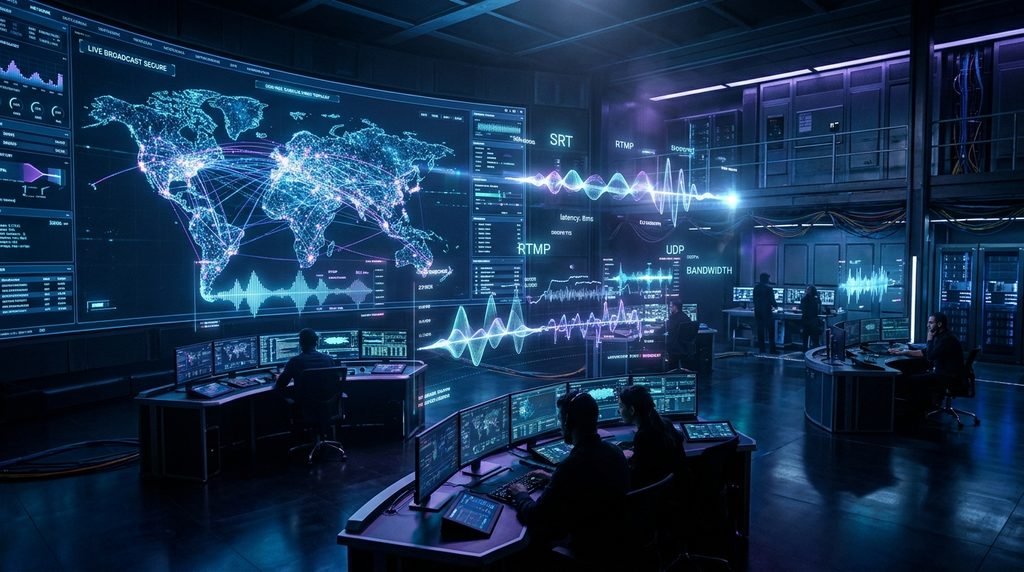
Accessing a live TV channel live stream differs fundamentally from streaming on-demand movies or television shows. On-demand video relies on pre-encoded video files stored on content delivery networks (CDNs), allowing your media player to buffer large sections of data ahead of time. In contrast, live channel broadcasts are captured, encoded, and packaged in near real-time, requiring tight synchronization between the broadcaster, the server, and your local viewing device.
+------------------+     +-------------------+     +---------------------+     +--------------------+
| Live Source Video| --> | Real-Time Encoder | --> | CDN Edge Server     | --> | Streaming Device   |
| (Broadcast Camera|     | (H.264 / H.265)   |     | (HLS / MPEG-DASH)   |     | (Xtreme HD IPTV,   |
| & Audio Feeds)   |     |                   |     |                     |     | Smart TV, Firestick|
+------------------+     +-------------------+     +---------------------+     +--------------------+
Modern Live Broadcast Protocols vs. On-Demand Video
Live television transmission relies on dynamic adaptive streaming protocols. The most widespread standard is HTTP Live Streaming (HLS), originally developed by Apple, alongside Dynamic Adaptive Streaming over HTTP (MPEG-DASH). These protocols split the incoming live stream into small video segments (typically 2 to 6 seconds long) and transmit them over standard HTTP web ports.
Because live event feeds change continuously, your streaming client must continuously fetch the latest playlist files to render the next segment. Service platforms like Xtreme HD IPTV utilize low-latency streaming configurations so that live sports, breaking news, and real-time events remain synchronized with live broadcast timelines without continuous buffering.
Network Bandwidth and Latency Requirements
Maintaining a uninterrupted broadcast feed demands steady network throughput. While video file downloads can pause and resume without penalty, live streams drop frames or freeze if packets arrive out of sequence or suffer from excessive network jitter.
| Streaming Resolution | Minimum Recommended Speed | Preferred Connection Type | Recommended Buffer Setting |
| Standard Definition (SD) | 5 Mbps | Wi-Fi (2.4 GHz) or Ethernet | Small (2–4 Seconds) |
| High Definition (1080p HD) | 25 Mbps | Wi-Fi (5 GHz) or Ethernet | Medium (4–8 Seconds) |
| Ultra HD (4K UHD) | 50 Mbps | Wired Ethernet (Cat6) | High (8–12 Seconds) |
Note: Speed requirements represent dedicated download throughput for a single active stream. Additional connected devices on the local network require added network overhead.
How to Stream Live TV Channels Across Major Devices
Setting up your environment to view a live TV channel live feed involves configuring hardware and software to decode modern video streams efficiently. Most modern consumer hardware features dedicated hardware decoding chips for H.264 (AVC) and H.265 (HEVC) formats, which lowers system temperatures and reduces playback stutters.
Streaming Media Players and Smart TVs
Dedicated streaming hardware—such as the Amazon Fire TV Stick, Google Chromecast with Google TV, Apple TV, or Android TV set-top boxes—offers robust processing for live video feeds.
- Install the Player Application: Download a verified media player application from the device’s official app store (such as Google Play or Apple App Store).
- Input Stream Parameters: Enter your service playlist URL or portal credentials provided by your provider.
- Configure Video Output: Match the frame rate of your streaming device to the native refresh rate of the live broadcast (e.g., 60 Hz for North American sports channels).
Setting up applications on hardware platforms such as the Amazon Firestick or Android set-top boxes allows services like Xtreme HD IPTV to deliver multi-channel electronic program guides (EPG) alongside uninterrupted video streams.
Mobile and Desktop Platforms
Streaming live television on mobile operating systems (iOS and Android) or desktop platforms (Windows and macOS) requires managing wireless connectivity and power management settings:
- Disable Power Saver Modes: Battery optimization routines on smartphones often restrict background network activity, causing live stream stalls.
- Use Dedicated Media Software: Apps built explicitly for live media playback handle dynamic bitrate switching better than standard desktop web browsers.
- Prefer 5 GHz or Wi-Fi 6 Networks: The 2.4 GHz Wi-Fi spectrum suffers from frequent radio interference from household appliances, leading to frame loss in real-time feeds.
Optimizing Your Live Channel Streaming Setup
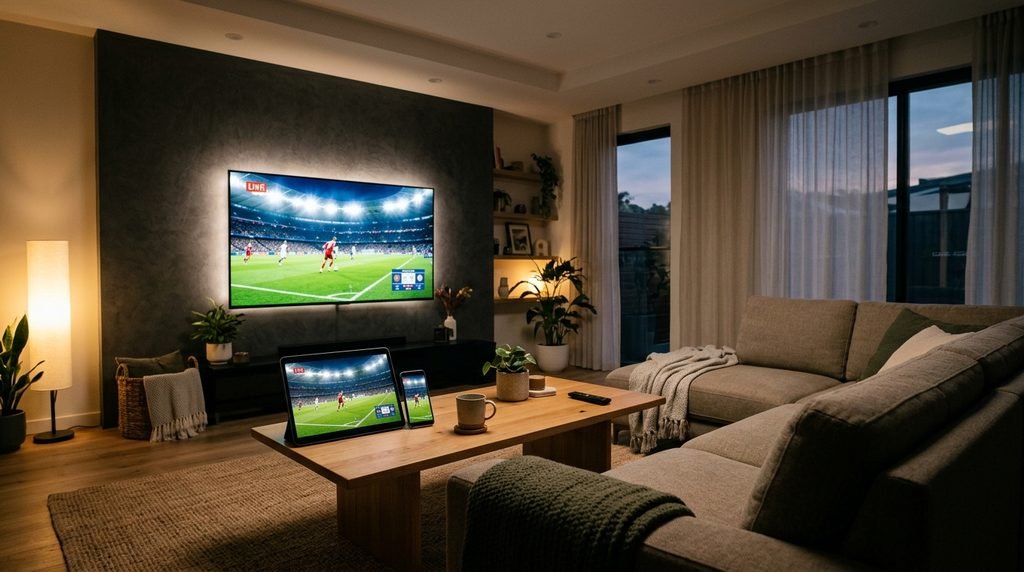
To achieve broadcast-quality stability when watching a live TV channel live, your local network must prioritize real-time packet transport over background tasks like file downloads or software updates.
Network Configuration and Quality of Service (QoS)
Modern routers support Quality of Service (QoS) rules, allowing you to prioritize traffic assigned to specific streaming hardware. Access your router’s administration portal via web browser (typically host addresses like 192.168.1.1 or 192.168.0.1 as detailed in official Microsoft Windows networking guides) and assign priority status to your TV media player’s MAC address.
[ Router Gateway ]
       |
       +---> [ TV Streaming Box / Smart TV ]  <-- Priority Tier 1 (High Priority / Low Latency)
       |
       +---> [ PC Downloads / Mobile Games ]  <-- Priority Tier 2 (Standard Priority)
Additionally, configuring custom Domain Name System (DNS) servers—such as Cloudflare DNS (1.1.1.1) or Google Public DNS (8.8.8.8)—can speed up initial channel connection times by resolving streaming server addresses more rapidly.
Live Streaming Troubleshooting and Performance Matrix
When experiencing playback issues, systemic troubleshooting isolates whether the bottleneck lies in the local device, local Wi-Fi, home gateway, or public network path.
           [ Live Channel Playback Issue Detected ]
                              |
                Is audio playing fine without video?
                              |
               +--------------+--------------+
               |                             |
            [ YES ]                       [ NO ]
               |                             |
    Hardware Decoding Error        Is video buffering continuously?
    --> Switch to Software             |
        Decoder in Player        +-----+-----+
                                 |           |
                              [ YES ]     [ NO ]
                                 |           |
                          Check Bandwidth  Inspect HDMI / HDCP
                          & Wi-Fi Jitter   Cable Connection
The table below outlines common stream degradation symptoms alongside verified technical solutions based on standard network administration practices.
| Issue Symptom | Root Cause | Primary Resolution | Secondary Resolution |
| Continuous Buffering | Insufficient bandwidth or Wi-Fi interference | Connect device via wired Ethernet cable | Switch router to 5 GHz frequency band |
| Audio/Video Out of Sync | Hardware decoder timing mismatch | Change player decoder setting (HW to SW) | Reset audio delay offset in player menu |
| Black Screen / Audio Only | Unsupported video codec or resolution mismatch | Lower player stream output resolution | Clear application cache and restart app |
| Channel Load Failure | Expired DNS cache or routing block | Change DNS settings to 1.1.1.1 or 8.8.8.8 | Reboot home router and streaming device |
| Frame Drops / Stutter | Display refresh rate mismatch | Enable “Match Content Frame Rate” on TV | Disable motion smoothing on display |
Editorial Methodology & Verification Block
Editorial Note: This technical guide was authored by our digital streaming infrastructure team. Recommendations are established using public networking standards, platform documentation from Amazon and Microsoft, and internal stream delivery testing. This document reflects technology standards current as of October 2026.
Frequently Asked Questions
What internet speed is required to watch live TV channels without buffering?
A minimum connection speed of 25 Mbps is recommended for high-definition (HD 1080p) live streams, while 4K Ultra HD streams require at least 50 Mbps of uninterrupted download bandwidth.
Why does a live TV stream buffer while on-demand movies play fine?
Live channels are encoded and transmitted in real time, leaving minimal room for pre-buffering. On-demand video files buffer minutes in advance, making them less sensitive to minor network speed fluctuations.
Can I watch live television channels on multiple devices simultaneously?
Yes, multi-device streaming is supported, provided your household internet bandwidth can handle concurrent connections and your streaming plan accommodates multiple simultaneous active connections.
How do I fix audio synchronization issues on live TV channels?
Switch your media player’s decoding method from hardware (HW) to software (SW), or adjust the manual audio delay settings within your streaming application settings.
Does using a wired Ethernet connection improve live channel streaming?
Yes. Ethernet connections eliminate wireless radio interference, packet loss, and signal degradation, providing the latency stability required for live television playback.
What should I do if a live stream displays a black screen?
Clear your streaming app cache, verify that your media player supports the broadcast codec (e.g., H.264 or HEVC), and confirm your display resolution matches your device capabilities.
Next-Step Block
To establish a reliable home live streaming environment, connect your primary media player directly to your router using a Cat6 Ethernet cable, set your device DNS to Cloudflare (1.1.1.1), and verify your streaming app hardware acceleration settings today.