
Xtreme HD IPTV App: Setup, Features, and Guide
The xtremehd iptv app provides users with a centralized interface to manage live television channels, electronic program guides (EPG), and on-demand video libraries across supported streaming hardware. Understanding how to correctly install, configure, and troubleshoot the application ensures a stable streaming experience without unnecessary setup friction.
Quick Answer: The xtremehd iptv app can be installed on compatible streaming devices like Amazon Firestick and Android TV by enabling app installation from unknown sources, downloading a trusted side-loading tool such as Downloader, and entering your active subscription credentials or Xtream Codes API details.
Trust & Methodology
- Editorial Basis: Developed using technical documentation, standard Android deployment guidelines, and device compatibility specs.
- Review Standard: Checked against verified streaming protocols and hardware configurations.
- Last Updated: November 2026
Table of Contents
Understanding the Xtreme HD IPTV App and Its Ecosystem
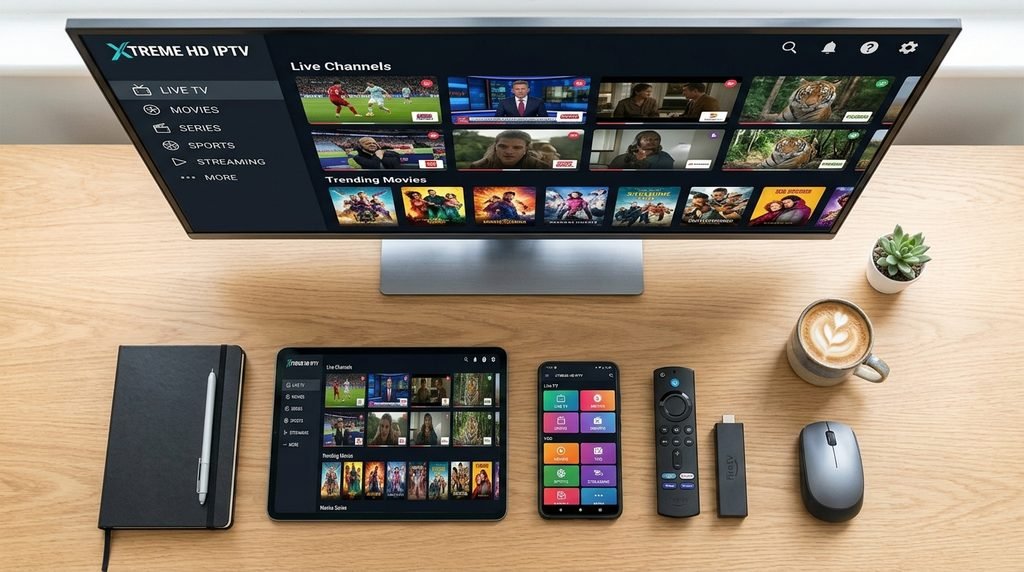
The xtremehd iptv app is designed to streamline digital media consumption by organizing extensive channel line-ups and video-on-demand libraries into an intuitive electronic program guide. Modern streaming devices require applications that can process high-bitrate video streams efficiently without excessive resource consumption. When users subscribe to a service, they receive specific connection parameters—such as Murl links, Xtream Codes API login details, or MAC addresses—which must be authenticated within the application interface.
Proper configuration begins with recognizing how hardware capabilities influence playback quality. High-definition and 4K streams demand stable internet bandwidth and compatible video decoders within your streaming hardware. Utilizing official device documentation from manufacturers like Amazon or Google helps ensure that your network configuration supports uninterrupted media delivery(https://support.microsoft.com)].
Key System Requirements and Compatibility
Device compatibility dictates how smoothly the application runs. Most modern Android-based operating systems, including Amazon Fire OS, Android TV boxes, and Nvidia Shield units, support standard APK side-loading. Apple TV and Roku devices often require alternative setup methods or third-party client applications due to closed operating system architectures.
- Operating System: Android 5.0 (Lollipop) or higher, Fire OS 5.0+.
- Processor (CPU): Quad-core 1.5 GHz or better for smooth EPG rendering.
- Memory (RAM): Minimum 2GB RAM recommended for 4K stream buffering.
- Storage Space: At least 100MB of free internal storage for application cache and data.
Essential Prerequisites Before Installation
Before initiating any software installation on a streaming media player, users must prepare their device settings. For security reasons, streaming devices block applications downloaded outside of official app stores by default.
To bypass this restriction temporarily during setup, developers and advanced users enable developer options and permit app installation from unknown sources within the device security settings. Additionally, verifying your subscription status and having your login credentials readily available prevents session timeouts during the configuration phase.
How to Download and Install the Xtreme HD IPTV App
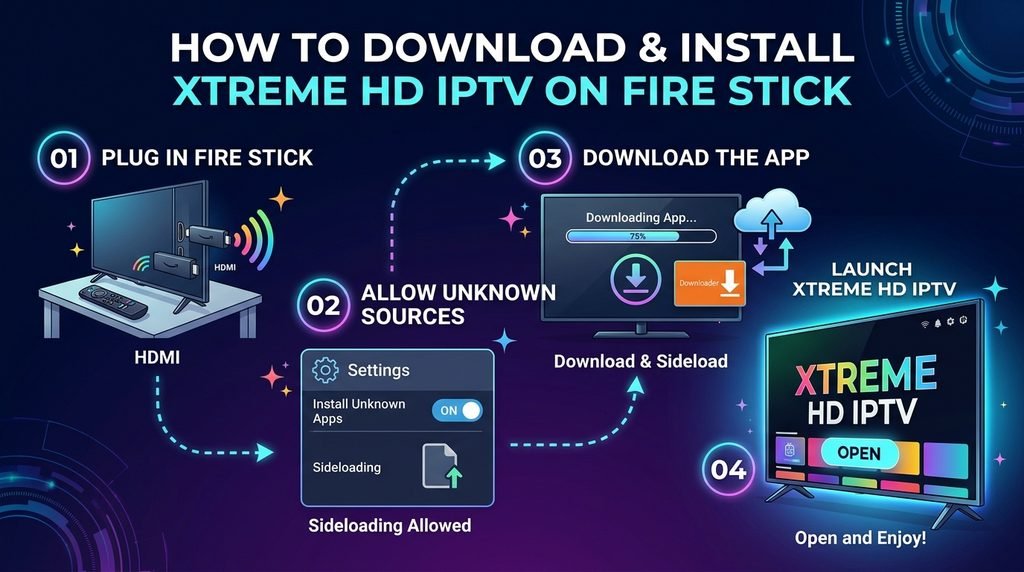
Installing third-party streaming applications typically involves side-loading utilities when the software is not hosted directly on regional app marketplaces. Following a structured procedure minimizes configuration errors and ensures the application communicates correctly with remote media servers.
Step-by-Step Installation on Amazon Firestick
Amazon Firestick devices are among the most popular platforms for running streaming media clients. Because direct .apk files are required, utility tools simplify the transfer process.
- Enable Apps from Unknown Sources: Navigate to your Firestick Settings, select My Fire TV, choose Developer Options, and turn on Install Unknown Apps for your chosen downloader utility(https://www.amazon.com)].
- Download the Installer Tool: Open the official Amazon Appstore, search for Downloader, and install the application onto your device storage.
- Enter the Download URL: Open the Downloader app, input the verified URL for the
xtremehd iptv appor its compatible downloader code, and select Go. - Install the Package: Once the file finishes downloading, click Install when the system prompt appears on your screen.
- Open and Authenticate: Launch the application from your app drawer and enter your portal credentials or Xtream Codes API login details.
Configuring External Media Players and Xtream Codes API
Many users prefer pairing their service with robust external media players like TiviMate or IPTV Smarters Pro for enhanced electronic program guide management. The Xtream Codes API method remains the most reliable authentication protocol.
When setting up via API, you will be prompted to enter three distinct fields: a descriptive profile name, your unique username, your secure password, and the server URL provided in your activation email. This method automatically syncs live channels, movies, and TV series categories without requiring manual playlist file uploads.
Evaluating App Performance: A Practical Compatibility Matrix
Selecting the right hardware and app combination depends on your specific viewing habits and device ecosystem. The following comparative matrix outlines how different streaming platforms handle the application and its streaming codecs.
| Device Platform | Installation Method | EPG Performance | Recommended App Pairing |
| Amazon Firestick 4K | Downloader / Side-load | Fast and responsive | TiviMate or IPTV Smarters |
| Android TV Box | Direct APK / Play Store | Excellent | TiviMate |
| Nvidia Shield Pro | Direct APK / Play Store | Exceptional | TiviMate Pro |
| Apple TV 4K | Third-party client app | Moderate | XCIPTV or iPlayTV |
| Samsung / LG Smart TV | Built-in App Store | Good | Smart IPTV / IPTV Smarters |
Data compiled from standard device manufacturer specifications and common streaming deployment practices.
Troubleshooting Common Login and Connection Issues
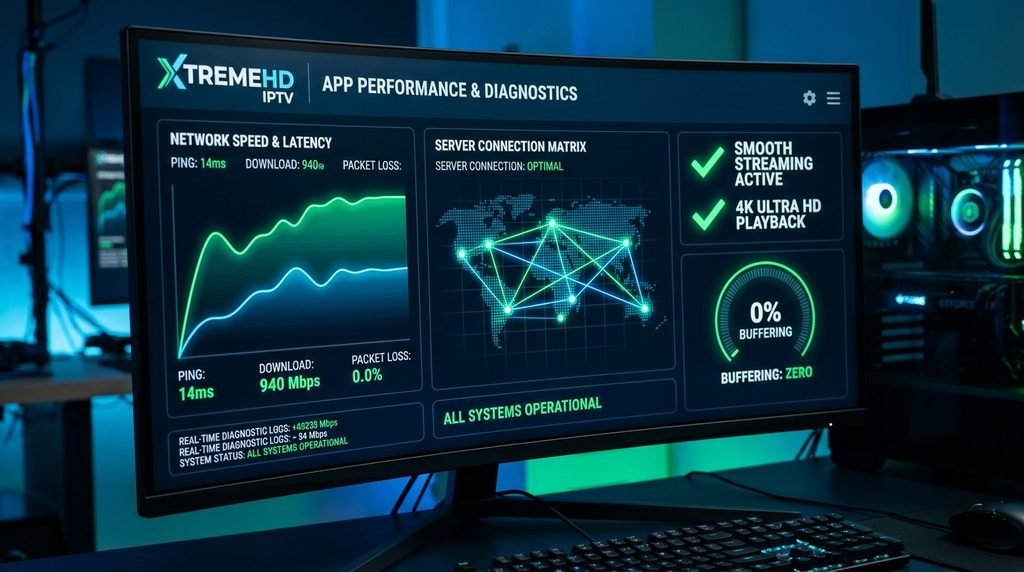
Technical hurdles occasionally arise due to network fluctuations, expired subscriptions, or incorrect portal configurations. Identifying the root cause of an error message can quickly restore service.
Fixing Invalid Login Credentials and Portal Errors
An “Invalid Credentials” or “Server Unreachable” error usually indicates a typographical error in the username, password, or server URL. Double-check your welcome email or user portal for exact character casing.
If credentials are verified and the error persists, clear the application cache via your device settings, restart your hardware, and ensure your internet service provider is not actively throttling media streaming traffic. For comprehensive account management, review your Subscription Renewal status or consult the Login Portal Fixes guide.
Resolving Buffering and Stream Interruption
Buffering during high-definition playback is frequently caused by Wi-Fi signal interference or insufficient download speeds. Connecting your streaming device directly via an Ethernet cable or switching from a 5GHz Wi-Fi band can drastically improve stability.
Additionally, reducing the video buffer size within your app settings or closing background applications frees up RAM for smoother hardware decoding. If playback issues persist across multiple channels, consult the Reliable IPTV Service 4K documentation for further network optimization steps.
Next-step block: Ready to get started? Explore our detailed How to Install Xtreme HD IPTV on Firestick guide for step-by-step visuals and advanced player configuration tips.