
IPTV Service for Apple TV 4K: 9 Smart Tips for 2026
When configuring an IPTV Service for Apple TV 4K, users gain access to a high-performance streaming environment driven by Apple’s advanced tvOS operating system and powerful processing hardware. Because Apple TV 4K utilizes a closed ecosystem, setting up external media streams requires using compatible third-party applications available on the official App Store, such as IPTV Smarters Pro or specialized playlist loaders. Leveraging a robust provider like Xtreme HD IPTV ensures that high-definition and 4K feeds are delivered with minimal latency and high stability. This guide explores the technical requirements, app configuration procedures, and optimization strategies necessary for a seamless entertainment setup.
Quick Answer
Configuring an IPTV Service for Apple TV 4K involves downloading a compatible media player application from the tvOS App Store, inputting your playlist URL or Xtream Codes API credentials provided by Xtreme HD IPTV, and adjusting video output settings in tvOS to match your television’s native refresh rate and resolution capabilities for optimal playback quality.
Trust and Methodology Block
- Editorial Standard: This article was developed by technical content specialists focusing on streaming device integration and network optimization.
- Evaluation Criteria: Analysis of tvOS platform constraints, official app store capabilities, network throughput benchmarks, and hardware decoding efficiency.
- Last Updated: November 2026
Table of Contents
Understanding Apple TV 4K Compatibility for Streaming Services
Hardware Architecture and tvOS Capabilities
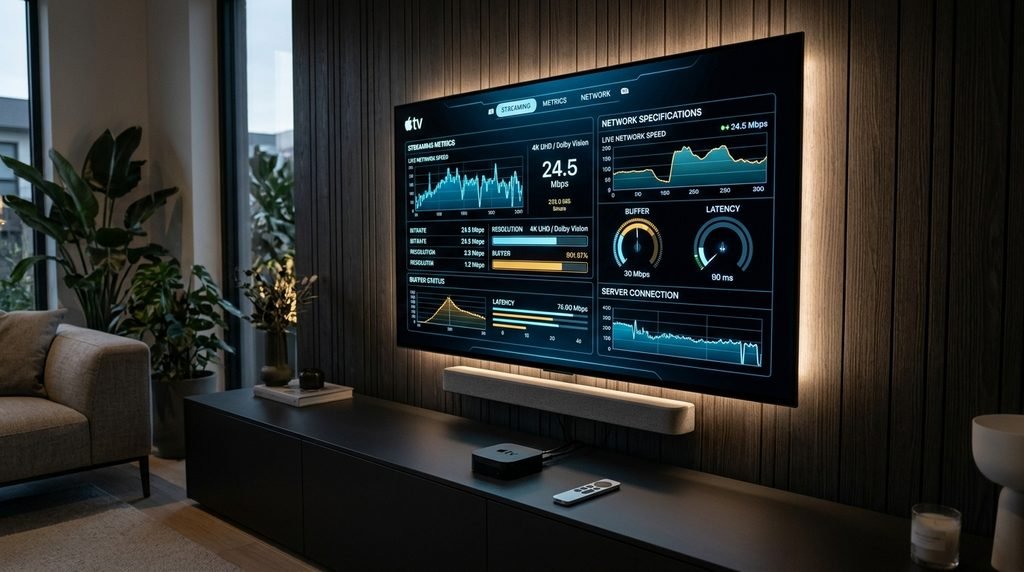
The Apple TV 4K features powerful system-on-chip architectures—such as the A15 Bionic chip in recent generations—designed to handle heavy decoding workloads with ease. Unlike standard definition streaming boxes, the device natively decodes high-bitrate HEVC and H.264 video streams smoothly. According to technical documentation published by Apple Developer, tvOS hardware acceleration minimizes frame drops and thermal throttling during extended viewing sessions. This hardware prowess makes running an IPTV Service for Apple TV 4K exceptionally reliable, provided the software player utilizes native decoding APIs efficiently.
Network Bandwidth Requirements for 4K Content
Streaming ultra-high-definition television feeds requires stable, high-speed internet connectivity. While standard definition streams require minimal bandwidth (around 3 to 5 Mbps), true 4K resolution streams often demand sustained speeds between 25 and 50 Mbps depending on the compression codec and framerate. Network congestion or packet loss can quickly cause stuttering or resolution downgrades. Industry benchmarks reported by CNET emphasize that maintaining low latency and stable packet delivery is far more critical for live broadcast streams than for on-demand video platforms that utilize large pre-buffering buffers.
Selecting and Configuring Media Player Apps on tvOS
Finding Compatible Applications on the App Store
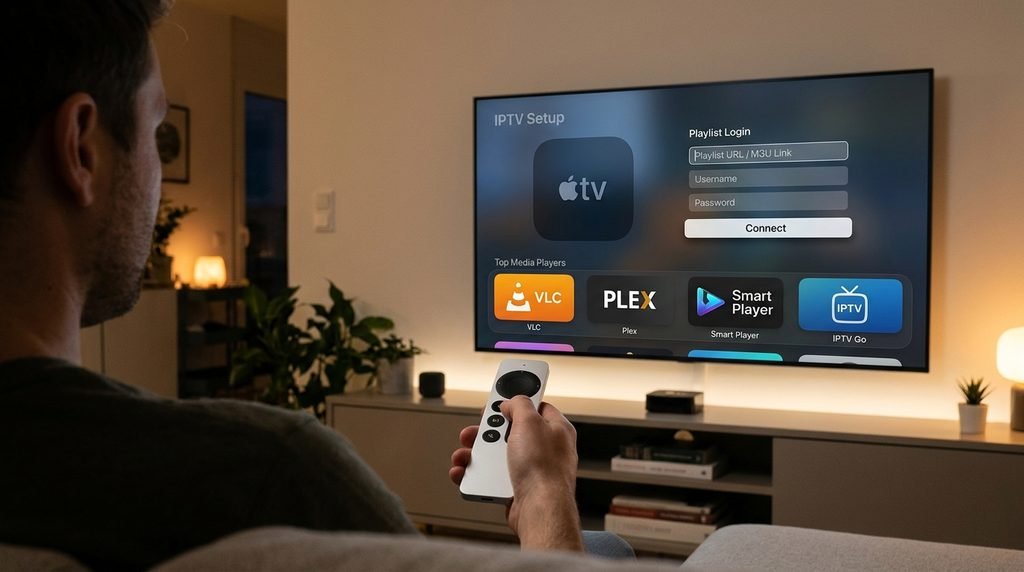
Because Apple enforces strict application guidelines, traditional third-party media players cannot always be sideloaded easily. Instead, users must search the official tvOS App Store for verified playlist managers and media gateways. Applications that support standard M3U playlists or Xtream Codes API logins provide the most straightforward integration path. Once installed, these applications act as a secure container to organize live television channels, electronic program guides (EPG), and video-on-demand libraries into an intuitive, remote-friendly interface.
Entering Playlist URLs and Credentials
After launching your chosen media player on your Apple TV, navigate to the settings or playlist management section to link your subscription. When setting up an IPTV Service for Apple TV 4K, you will typically be prompted to enter a specific server URL, username, and password provided in your account dashboard, such as those offered via Xtreme HD IPTV Subscription. Ensuring these strings are entered accurately—without leading or trailing spaces—prevents authentication errors and allows the application to successfully download channel categories and program metadata.
| Setup Step | Action Required | Technical Consideration |
| 1. App Installation | Download a supported player from tvOS App Store. | Ensure tvOS is updated to the latest software version. |
| 2. Credential Entry | Input server URL, username, and password. | Double-check exact characters to avoid login failures. |
| 3. EPG Synchronization | Link XMLTV guide URL for live scheduling. | Refresh metadata cache to populate program schedules. |
| 4. Audio/Video Sync | Match output resolution to display capabilities. | Set chroma and frame rate matching for smooth motion. |
Optimizing Your Streaming Experience and Avoiding Buffering
Ethernet vs. Wi-Fi Connectivity Considerations
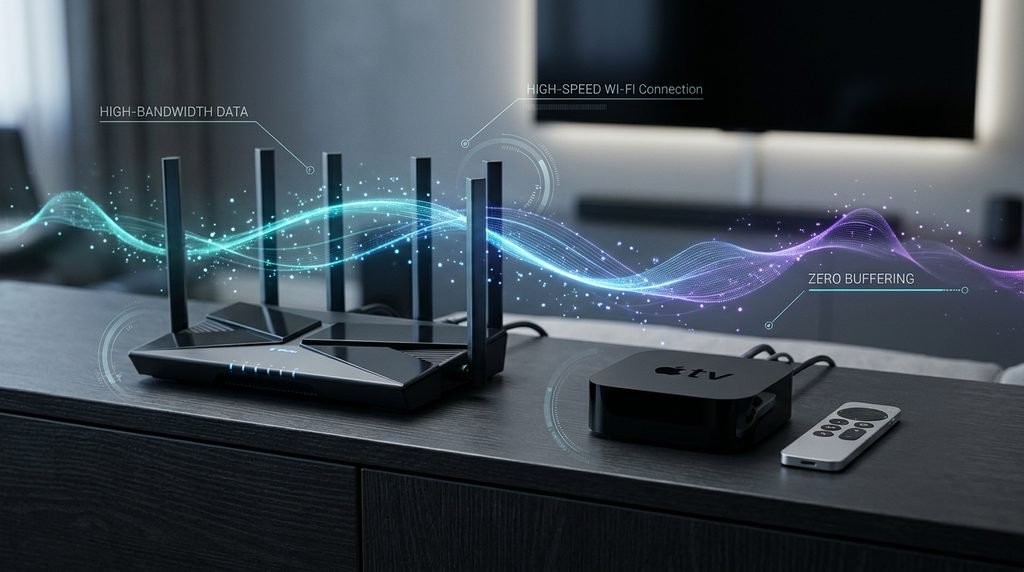
While modern Wi-Fi routers support high throughput, wireless interference from neighboring networks, walls, and household appliances can introduce packet jitter that disrupts live video streams. For uninterrupted playback when using an IPTV Service for Apple TV 4K, connecting your Apple TV directly to your router using a Gigabit Ethernet cable is strongly recommended. A wired connection eliminates wireless dropouts, ensuring consistent throughput that supports high-bitrate live sports and 4K broadcasts without stuttering. Additional insights on optimizing home entertainment networks can be found through resources provided by Microsoft Support.
Managing Buffer Sizes and Stream Quality Settings
Most advanced media players on tvOS feature customizable buffer allocation settings. Increasing the buffer size allows the application to pre-load a larger segment of the incoming stream, helping to smooth out brief Internet service provider micro-outages. However, setting the buffer too high can introduce a slight delay on live television channels. Balancing buffer depth with your connection stability ensures both responsive channel changing and reliable playback consistency. For users seeking broader hardware alternatives or specialized advice, exploring resources like the IPTV Service for Android TV Box guide can offer helpful comparative perspectives.
Frequently Asked Questions About Apple TV Streaming Setup
Can I use live electronic program guides on Apple TV?
Yes, most compatible tvOS media players support XMLTV guide links, allowing you to view current and upcoming schedule listings directly alongside your video feeds.
Do I need a VPN configured directly on tvOS?
Apple TV supports native virtual private network applications on recent tvOS versions, allowing users to secure their traffic or route connections through preferred gateway servers when necessary.
How do I troubleshoot channel loading failures?
First verify your internet connection, then check that your subscription credentials are active. Re-entering your playlist URL or clearing the app cache typically resolves temporary synchronization issues.
Can I manage multiple playlists within one app?
Many advanced media player applications on Apple TV allow you to add multiple server profiles, letting you switch between different accounts or providers effortlessly.
What should I do if audio and video are out of sync?
Check your television’s audio delay settings or adjust the audio track selection within the media player interface to re-align the stream timing.
Next Steps
To explore compatible application setups further, review the detailed TiviMate Setup Guide or examine comprehensive subscription tiers on the Pricing Page.