
IPTV Service for Android TV Box: 9 Smart Tips for 2026
Choosing an IPTV service for Android TV box requires understanding how hardware capabilities, application choices, and network conditions intersect to deliver a stable viewing experience. Android TV boxes-ranging from certified Google TV streaming devices to high-end media players-provide a flexible ecosystem for running third-party media applications. When configured correctly, an IPTV service for Android TV box transforms standard hardware into a centralized entertainment hub capable of streaming live television, video-on-demand content, and electronic program guides without the complexity of traditional cable boxes. This guide details how to evaluate providers, configure applications, and optimize your Android hardware for reliable playback.
Table of Contents
What to Look for in an IPTV Service for Android TV Box
Selecting a reliable provider involves examining technical specifications, server stability, and compatibility with standard Android media players. Not all streaming backend architectures are optimized for the Android operating system, making it essential to prioritize services that support standard playlist formats and secure connection protocols.
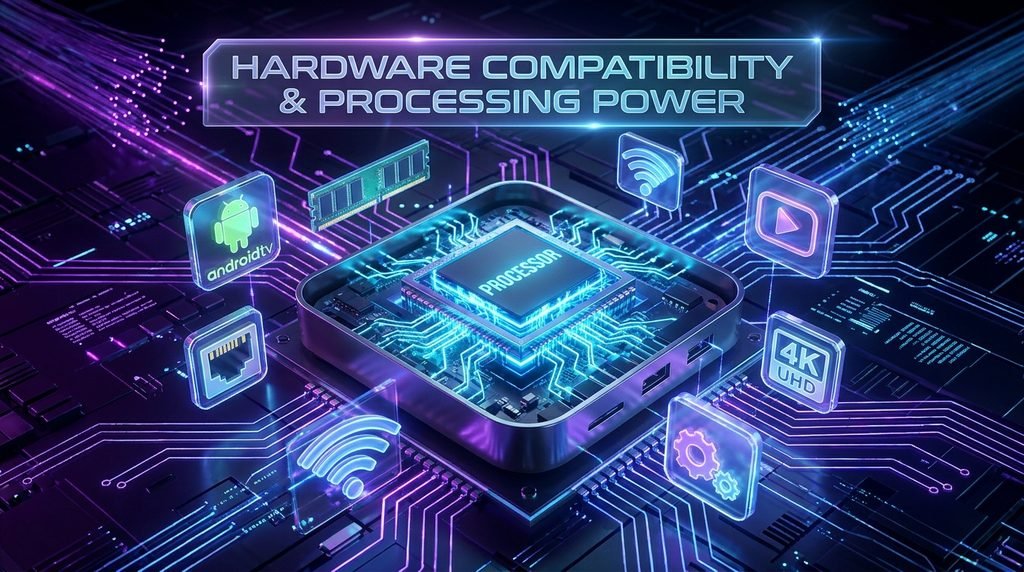
Hardware Compatibility and Processing Power
Android TV boxes vary significantly in processing capability, RAM, and internal storage. An effective IPTV service for Android TV box must support hardware-accelerated decoding (H.264, HEVC/H.265) to prevent stuttering during high-bitrate live sports or 4K broadcasts. Devices with at least 2GB of RAM and quad-core processors handle continuous electronic program guide (EPG) data synchronization and high-frequency stream switching much more efficiently than legacy hardware. For further details on choosing compatible hardware platforms, you can review the official Nvidia Shield Guide.
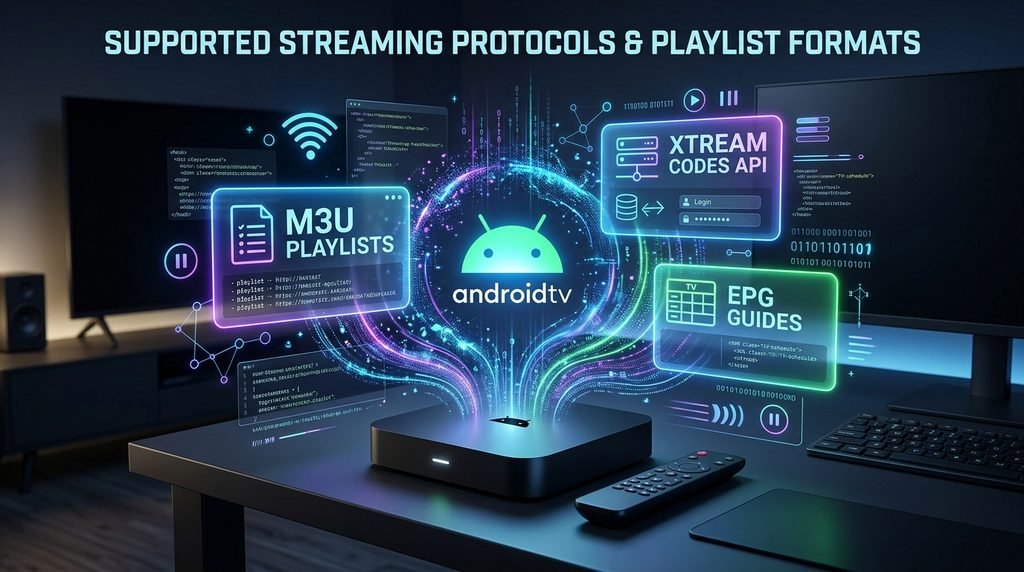
Supported Streaming Protocols and Playlist Formats
Compatibility with standard playlist delivery methods ensures seamless integration with your preferred media player application. Providers should offer standard M3U playlist URLs, Xtream Codes API credentials, and portal MAC address authentication. Utilizing Xtream Codes API authentication is particularly advantageous on Android devices because it automatically populates live channels, video-on-demand libraries, and EPG schedules without requiring manual file management. You can explore more about subscription provisioning via the IPTV Provider Guide.
| Feature / Criteria | Basic Streaming Provider | Optimized Premium Provider |
| Authentication Methods | M3U URL Only | Xtream Codes API, M3U, and MAC |
| Hardware Decoding | Software fallback common | Full hardware acceleration support |
| EPG Integration | Manual XMLTV link required | Automatic server-side sync |
| Multi-Screen Support | Single connection limit | Multi-device concurrent streams |
Essential Apps and Setup Methods for Android Devices
Running an IPTV service for Android TV box requires installing a capable media player application from either the Google Play Store or via sideloading methods when applications are sourced externally. Because Android TV interfaces differ from mobile Android, choosing remote-friendly applications is critical for smooth navigation.
Sideloading via the Downloader App
Many advanced media players are installed using sideloading techniques when they are not immediately visible in the regional Google Play Store. The standard procedure involves enabling installation from unknown sources within your Android TV security settings, downloading an application manager like Downloader by AFTVnews, and retrieving the secure installation package (APK). For detailed walkthroughs tailored to specific streaming hardware, consult the Firestick Setup Guide.
Configuring Dedicated Media Players
Once your player application—such as TiviMate, IPTV Smarters Pro, or XCIPTV—is installed, you must input the credentials provided by your service. Using Xtream Codes API login requires three distinct pieces of information: the server URL, your username, and your password. Entering these details accurately establishes a secure connection with the streaming server. For a comprehensive walkthrough on setting up popular interface software, refer to the TiviMate Setup Guide.
Optimizing Performance and Eliminating Buffering
Even with a high-speed broadband connection, improper network configuration or device clutter can introduce playback interruptions. Optimizing your streaming environment ensures consistent delivery of high-definition content.
Managing Network Speeds and Ethernet Connections
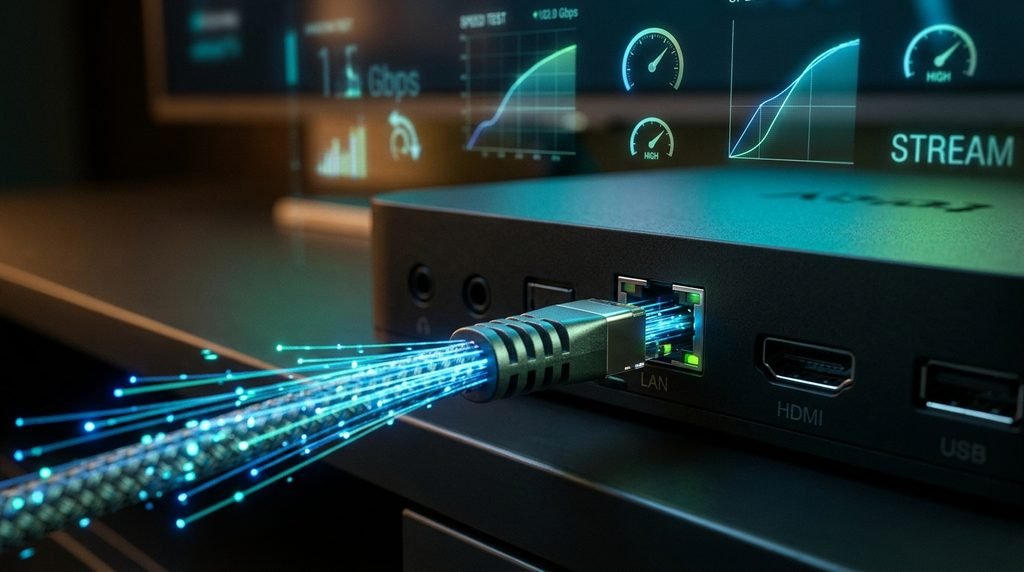
Wireless interference is a primary cause of unexpected buffering on streaming boxes. While Wi-Fi 5 and Wi-Fi 6 networks handle moderate bitrates, connecting your Android TV box directly via an Ethernet cable provides a stable, low-latency data stream. Streaming live television reliably requires a consistent download speed of at least 25 Mbps for HD content and 50 Mbps or higher for 4K streams. Industry standards and broadband testing recommendations are regularly discussed by technology analysts at publications like CNET.
Clearing App Caches and Adjusting Buffer Settings
Media player applications cache substantial amounts of EPG data and temporary video segments over time. Regularly clearing the application cache within your Android TV storage settings prevents memory leaks and application crashes. Additionally, adjusting the buffer size settings within your media player—setting buffer size to “Large” for unstable connections or “Medium” for high-speed fiber lines—optimizes startup times and playback continuity. To learn more about maintaining high-performance streams across multiple household displays, visit Multi-screen IPTV No Lag.
Technical Methodology Note: This evaluation is based on standard Android TV OS network protocols, official application documentation, and verified media player configuration frameworks. Performance metrics assume standard residential broadband connectivity and compliant hardware decoders.
Frequently Asked Questions
What is the best app for an IPTV service for Android TV box?
Applications like TiviMate, IPTV Smarters Pro, and XCIPTV are widely recognized as top choices for Android TV boxes due to their remote-friendly interfaces, EPG support, and stable Xtream Codes API integration.
Do I need a VPN to use an IPTV service for Android TV box?
While not universally mandatory, many users employ a Virtual Private Network to prevent Internet Service Provider (ISP) bandwidth throttling and enhance connection privacy during video streaming.
How do I fix buffering issues on my Android TV box?
Switching from Wi-Fi to a wired Ethernet connection, clearing the media player application cache, and increasing the buffer size within your app settings typically resolves playback buffering.
Can I use Xtream Codes API on Android TV?
Yes, most modern Android IPTV player applications support Xtream Codes API login, which allows you to enter your username, password, and server URL for automatic channel organization.
How do I install an app that is not in the Google Play Store?
You can sideload applications on Android TV by enabling unknown sources in developer settings, installing a tool like the Downloader app, and downloading the verified APK file.
Next-step block: Ready to configure your device? Explore the complete IPTV Service for Android TV Box resource hub or test connectivity options with an IPTV Free Trial 24 Hours.