
IPTV Service for Android TV Box: 9 Smart Tips for 2026
Choosing the right configuration approach for an IPTV service for Android TV is essential for achieving smooth playback, clear electronic program guides (EPG), and reliable daily streaming. Whether you are using a dedicated streaming box or a smart television powered by Google TV, setting up your subscription correctly ensures high-definition stability without constant buffering. This comprehensive guide details hardware considerations, app selection, step-by-step installation instructions, and advanced performance tuning for users integrating Xtreme HD IPTV on Android TV devices.
Quick Answer: Setting up an IPTV service for Android TV involves downloading a compatible media player application from the Google Play Store, entering your Xtreme HD IPTV portal or M3U playlist credentials, and configuring hardware decoding settings for optimal playback stability.
Table of Contents
Understanding IPTV Compatibility on Android TV Hardware
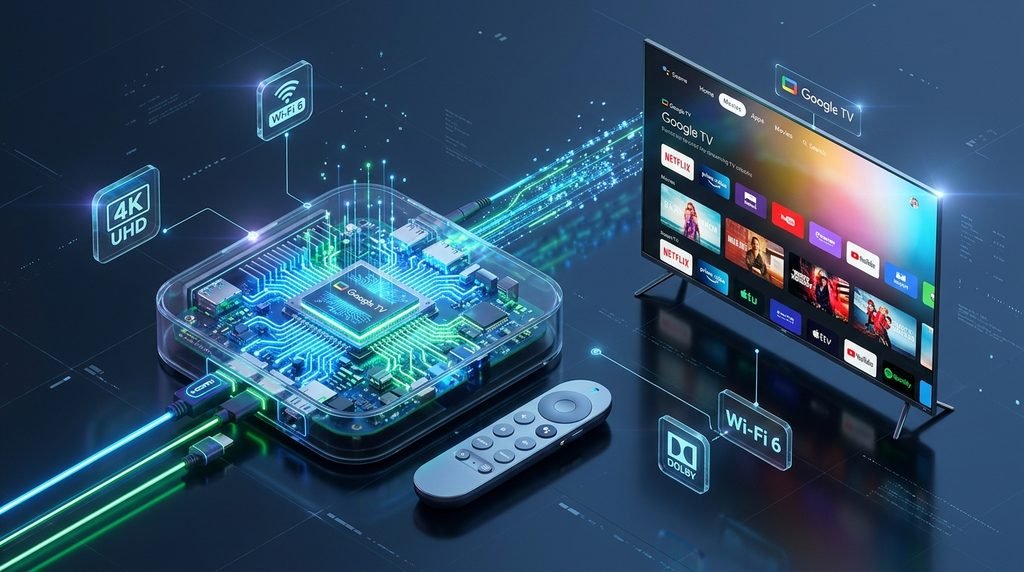
Android TV platforms offer a flexible environment for media streaming because they support native third-party application sideloading and feature robust Google Play Store access. However, hardware performance varies significantly between budget streaming sticks and high-end media boxes. Evaluating your hardware specifications ensures that your device can handle high-bitrate video streams and dense channel lineups without stuttering.
Hardware Requirements and Processing Power
Smooth video playback depends heavily on your device’s processor and system memory. While basic streaming sticks may manage standard definition content, high-definition and 4K streams require robust hardware specifications. Industry benchmarks from consumer technology authorities such as PCMag indicate that devices equipped with at least 2GB of RAM and quad-core processors handle video decoding much more efficiently. For a seamless experience, many users pair their service with advanced hardware; you can explore specific options via the IPTV Service for Android TV Box resource or review premium configurations detailed on the Nvidia Shield Guide.
Operating System and Google TV Integration
Modern Android TV interfaces integrate live channels directly into the home screen layout, allowing users to browse customized channel grids alongside major on-demand applications. Ensuring your operating system is updated to the latest available security patch prevents compatibility conflicts with modern media player applications. When configuring Xtreme HD IPTV on Android TV, verifying that your firmware supports hardware-accelerated video decoding is a critical first step.
| Hardware Tier | Recommended RAM | Processor Type | Max Supported Resolution |
| Entry Streaming Sticks | 1GB – 1.5GB | Quad-Core 1.5 GHz | 1080p Full HD |
| Mid-Range Android Boxes | 2GB | Quad-Core 2.0 GHz | 4K Ultra HD |
| Premium Media Centers | 3GB – 4GB | Hexa/Octa-Core | 4K HDR at 60fps |
Step-by-Step Installation of Xtreme HD IPTV on Android TV
Installing your subscription on an Android TV device requires selecting an appropriate media player application and authenticating your account using standard connection protocols. Most users choose established applications like TiviMate or IPTV Smarters Pro due to their robust EPG support and remote-friendly interfaces.
Downloading and Configuring Compatible Apps
To begin the installation process, power on your Android TV and navigate to the Google Play Store. Search for your preferred media player application—such as TiviMate or IPTV Smarters Pro—and select install. If you need assistance choosing the right application for your specific setup, consult our detailed overview on the TiviMate Setup Guide or review options for alternative hardware via the Firestick Setup (Main) guide.
Entering Portal Details and Playlist URLs
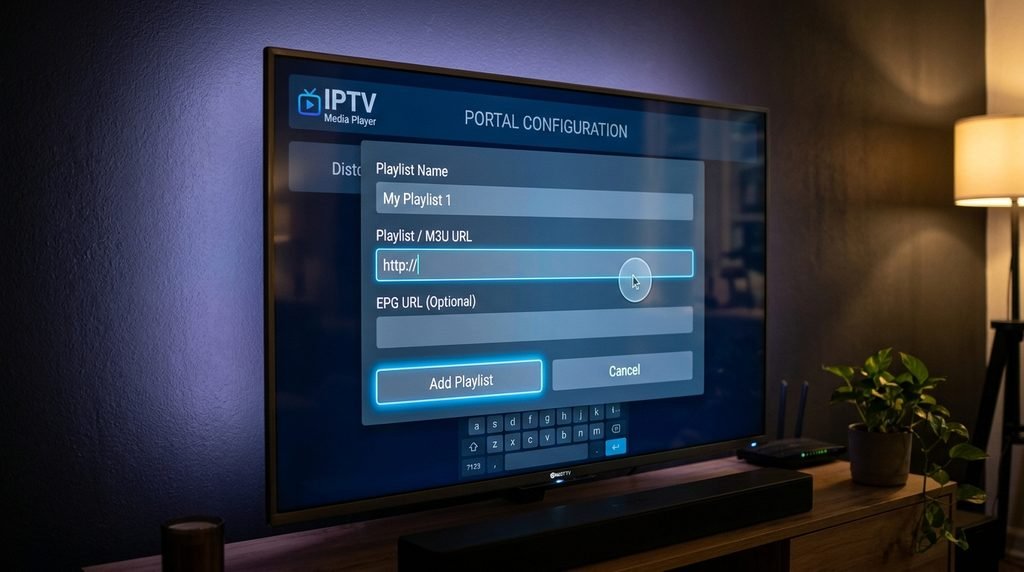
Once your chosen application is installed, launch the program and select your preferred connection method. Xtreme HD IPTV supports both Xtream Codes API login and direct M3U playlist URLs.
1.Open the Media Application:
Launch your installed IPTV player (such as TiviMate or IPTV Smarters Pro) from your Android TV app drawer.
2.Select Playlist or Portal Type:
Choose “Add Playlist” or “Xtream Codes API” as your connection method to ensure proper EPG synchronization.
3.Enter Account Credentials:
Input your username, password, and the server portal URL provided in your subscription confirmation. Double-check all characters to avoid authentication errors.
4.Complete Channel and EPG Sync:
Allow the application a few moments to download and cache the channel list and program guide data.
Optimizing Streaming Performance and Buffer Settings
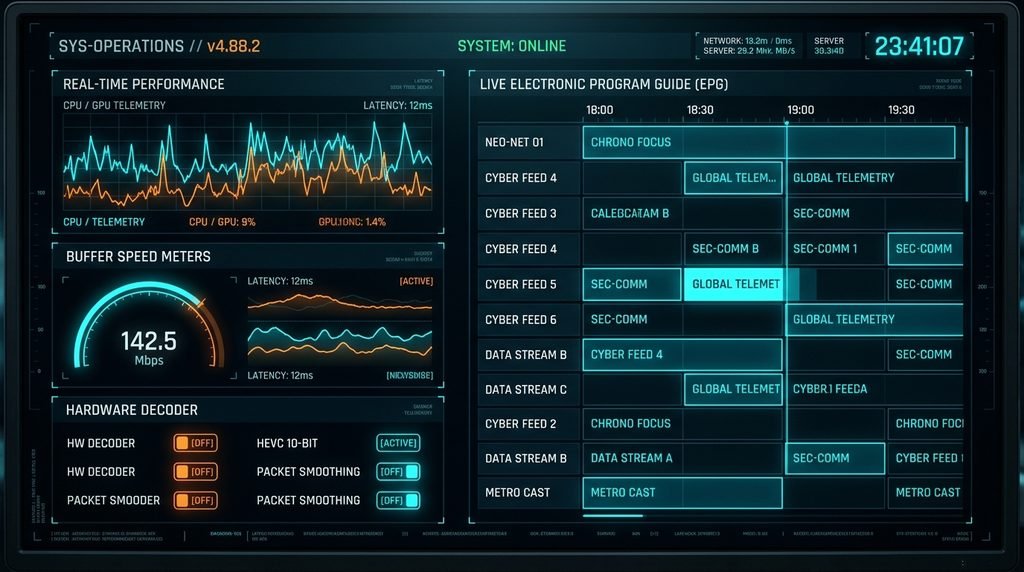
Even with a fast internet connection, improper player settings can lead to stream freezing or audio desynchronization. Optimizing your video player parameters ensures that Xtreme HD IPTV delivers consistent 4K and HD playback on your Android TV setup.
Adjusting Buffer and Hardware Decoder Parameters
Most advanced media players allow users to modify buffer sizes and video decoder engines. Setting your decoder to Hardware Acceleration (HW+) offloads processing tasks from the central processor to the graphics chip, reducing thermal throttling and stutter. For detailed guidance on maintaining uninterrupted playback across multiple household screens, review our insights on Multi-screen IPTV No Lag. Additionally, verifying network stability is essential; streaming data standards established by organizations like the Federal Communications Commission (FCC) recommend steady broadband speeds above 25 Mbps for reliable 4K video delivery.
Managing Electronic Program Guides (EPG)
An accurate EPG is vital for browsing live television schedules seamlessly. If your guide fails to populate, check your playlist update interval settings within your app. Setting the EPG update frequency to refresh every 24 hours prevents memory bloat while ensuring your schedule remains current. Users looking to verify overall service capabilities and modern platform features can reference the comprehensive breakdown on the Xtreme HD IPTV Features page.
Practical Troubleshooting Matrix for Common Playback Issues
When configuring an IPTV service for Android TV, users occasionally encounter minor technical hurdles. The following matrix outlines common symptoms, potential causes, and actionable resolutions.
| Issue Symptom | Likely Cause | Recommended Resolution |
| Stream Buffering / Stuttering | High network latency or aggressive ISP throttling | Test connection speed; consider reviewing our guide on IPTV Without VPN Guide if encryption overhead impacts speed. |
| Authentication Failed Error | Typo in portal URL, username, or password | Re-enter credentials carefully; verify active subscription status via the Subscription Renewal portal. |
| Missing EPG / Blank Schedule | Outdated playlist link or cache corruption | Clear application cache and force a manual EPG update from the player settings menu. |
| Audio Out of Sync | Software decoder incompatibility | Switch video decoder settings from Software (SW) to Hardware (HW/HW+) in player preferences. |
Trust and Methodology Block
This article was researched and compiled by the editorial team at Xtreme HD IPTV, drawing upon official Android TV developer documentation, network streaming guidelines from the FCC, and verified device configuration practices. All recommendations focus on technical clarity, device compatibility, and performance optimization without unverified performance claims. Last updated: November 2026.
Frequently Asked Questions
What internet speed do I need for IPTV on Android TV?
A stable broadband connection of at least 15 Mbps is recommended for HD streaming, while 4K streams require a minimum of 25 Mbps to prevent buffering.
Can I use Xtreme HD IPTV on multiple devices simultaneously?
Multi-screen capability depends on your specific subscription plan tier. Check your account details or review multi-screen configurations before connecting additional hardware.
Which IPTV player app works best on Android TV?
TiviMate and IPTV Smarters Pro are widely regarded as the top choices for Android TV due to their native remote control support and robust EPG integration.
Why is my electronic program guide not loading?
EPG loading failures are usually caused by outdated playlist links or cached data corruption. Clearing the app cache and refreshing the playlist typically resolves the issue.
Is a VPN required to use an IPTV service on Android TV?
A VPN is not strictly required for standard operation, but some users employ one to bypass ISP throttling or enhance network privacy.
Next Step: Ready to configure your device? Explore our step-by-step guide on the IPTV Service for Android TV to finalize your setup.